How to Add or Remove a Google Account on Android
Add Google, Exchange or IMAP accounts to an Android phone, and what removing an account deletes from the device. Based on Android Help.
Add Google, Exchange or IMAP accounts to an Android phone, and what removing an account deletes from the device. Based on Android Help.

Adding a Google account to an Android phone brings its email, contacts and calendar with it. Removing it takes them off the phone. This guide follows Android Help. Google says some steps only work on Android 14 and up.
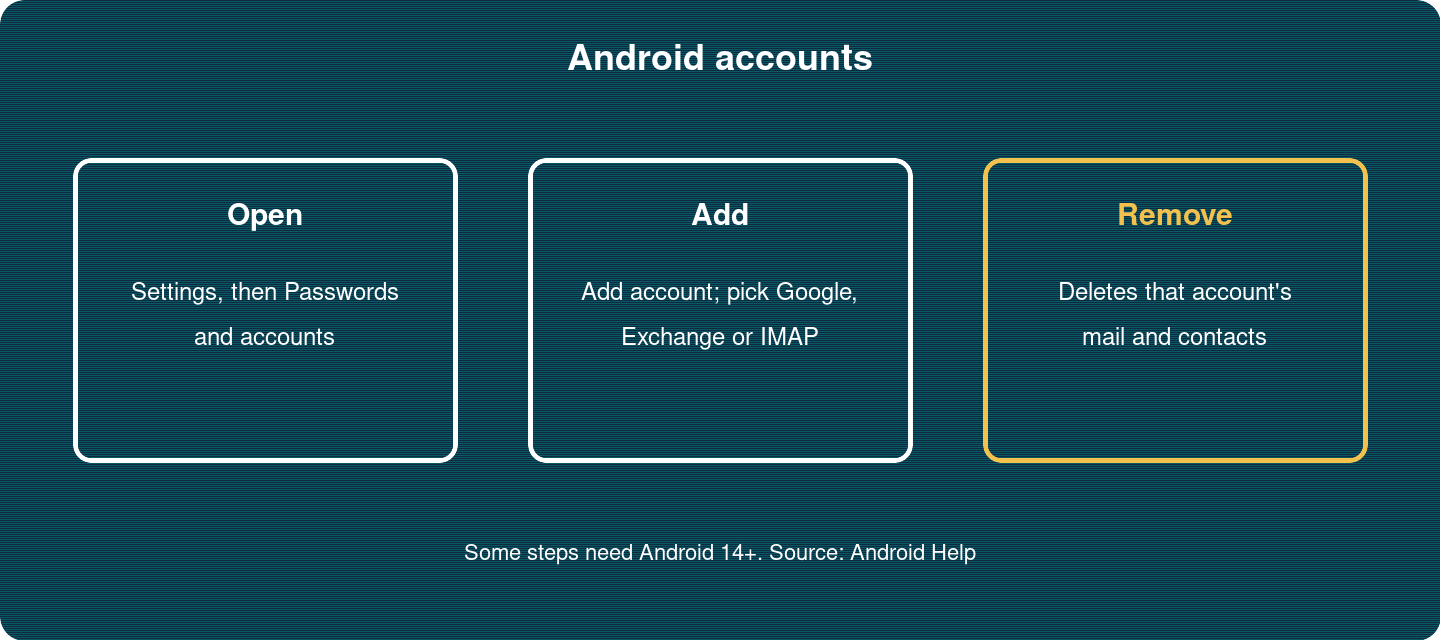
When you add a Google account, the information tied to it, such as email and contacts, is added to your device automatically. When you remove an account, Google says everything associated with that account is deleted from the device, including email, contacts and settings. Check what you need before you remove one.
Google says Exchange, IMAP and POP3 are what you would generally choose if you use an email program such as Microsoft Outlook or Apple Mail.
Google suggests creating a separate user or a temporary guest instead of adding a friend's account.
You get a work Google account and want its calendar on your phone. Open Settings, Passwords & accounts, Add account, tap Google and sign in. Later, if you leave that job, remove the account and expect its email and calendar to leave the phone. To see which devices still have access, read see devices with Google Account access.