AirPlay or Screen Mirroring Not Working? Steps to Try in Order
Same Wi-Fi, updates, AirPlay receiving settings, restarts and Home settings, plus fixes for music that stops or no sound. Based on Apple Support, 12 November 2026.
Same Wi-Fi, updates, AirPlay receiving settings, restarts and Home settings, plus fixes for music that stops or no sound. Based on Apple Support, 12 November 2026.
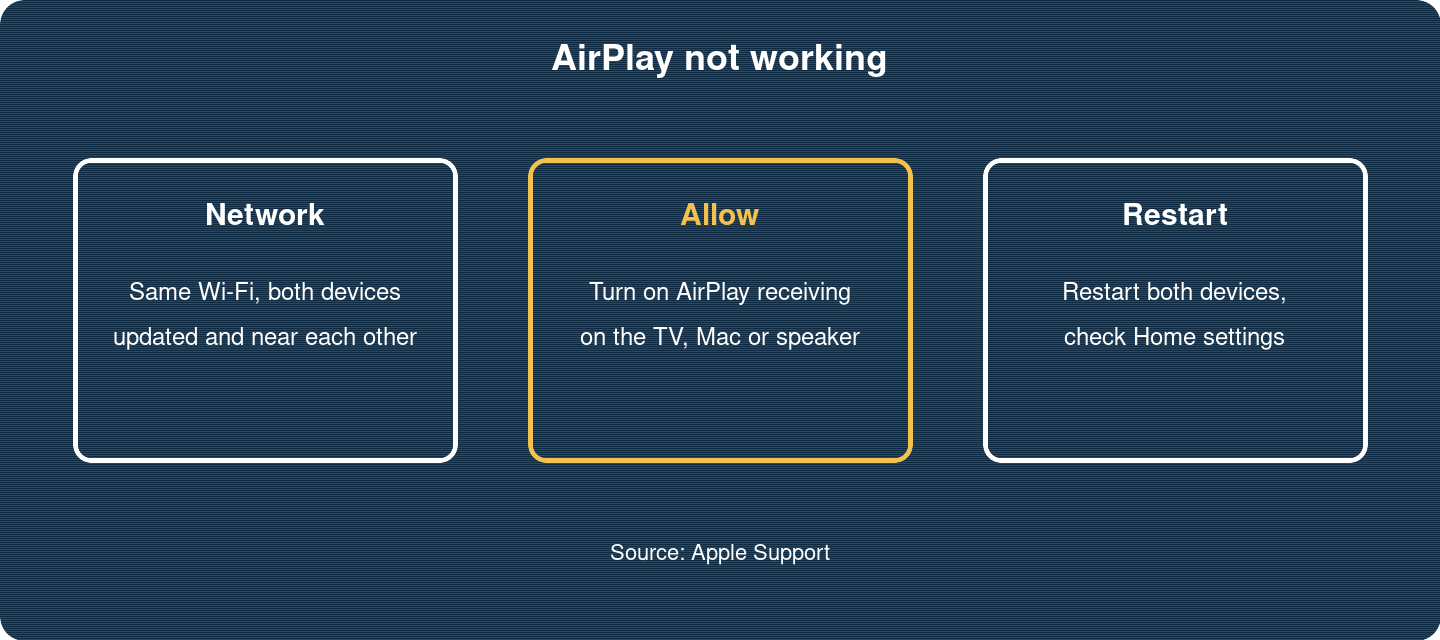
AirPlay lets you stream or mirror your screen to an Apple TV, a smart TV or a speaker. When it fails, work through these steps in order. This guide follows Apple Support (published 12 November 2026). After each step, check whether it works.
Use your device or Siri to start the music again. Apple says the Home app might be using a HomePod, Apple HomeView, Apple TV or AirPlay speaker as the main audio source, even when it is not playing. Using Siri on that device or doing another task there can stop playback everywhere. You can also stream manually from an iOS device or a computer with iTunes.
Make sure the volume is up and not muted on both your device and your television or receiver.
Your iPhone cannot find your Apple TV. Check both are on the same Wi-Fi network, then on the Apple TV open Settings, General, AirPlay and confirm it is on. If the network itself is the problem, see what to do if your iPhone cannot connect to Wi-Fi. If it still fails after these steps, Apple says to contact Apple Support.
Apple TV, HomePod and Apple HomeView are not available in all countries or regions.