Android Home Screen: Add Apps, Shortcuts and Widgets
Swipe up from the bottom to find an app and drag it onto a Home screen. For a widget, touch and hold an empty space and tap Widgets. Drag an item up to Remove to take it off the Home screen without deleting it.
Autobaselli · 2 min read
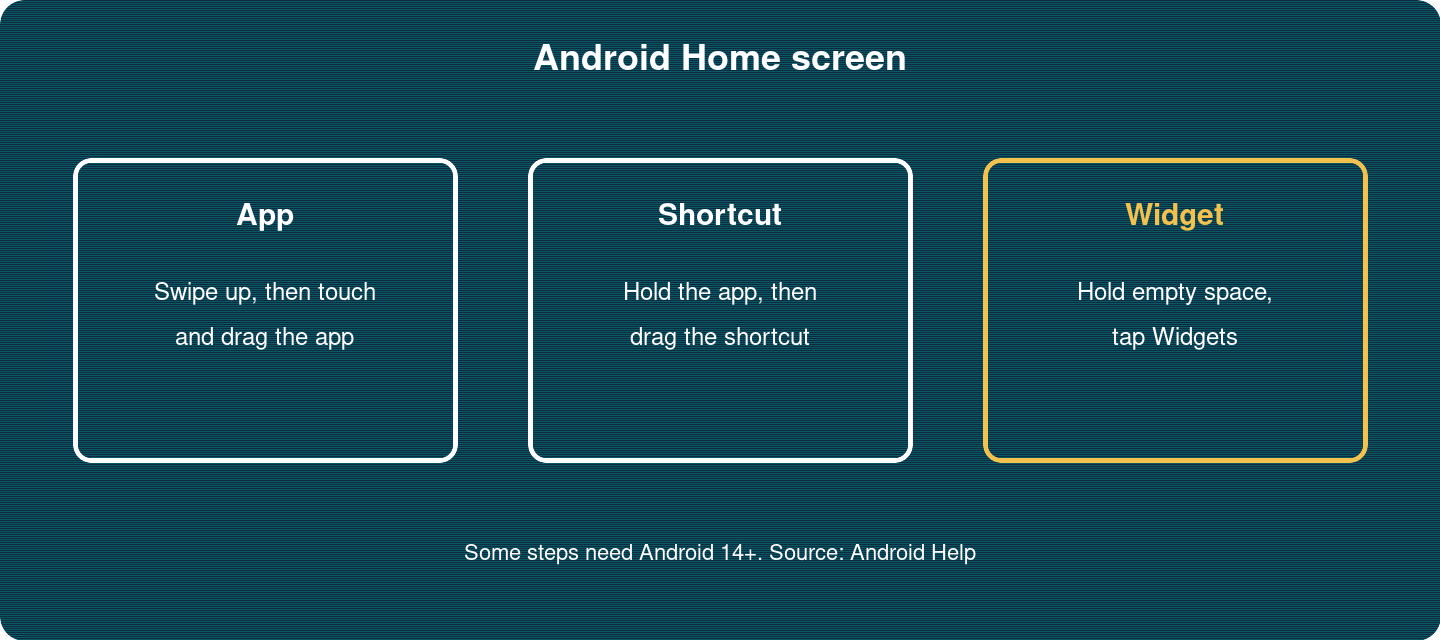
Short answer: to add an app, swipe up from the bottom of the Home screen, then touch and drag the app to where you want it. For a widget, touch and hold an empty space on a Home screen, tap Widgets, then drag one into place. To take something off the Home screen without deleting it, drag it up to Remove. Google says some steps only work on Android 14 and up, and steps can vary by device. Sources: Android Help (undated pages).
Home screen basics in three steps.
Which one do you want?
Item
What it is, per Google
How to add it
App
The app itself
Swipe up from the bottom, touch and drag the app, slide it into place, lift your finger
Shortcut
A shortcut to content inside an app
Touch and hold the app, then lift your finger. If it has shortcuts you get a list. Touch and hold the shortcut and slide it into place.
Widget
Shows information without opening the app
Touch and hold an empty space, tap Widgets, find the app, touch and hold a widget, slide it into place
To use a shortcut without adding it to a Home screen, just tap it.
Add a widget, step by step
On a Home screen, touch and hold an empty space.
Tap Widgets.
Find the app that has the widget you want. Tap the app to see its list of widgets.
Touch and hold a widget. You will see images of your Home screens.
Slide the widget to where you want it, then lift your finger.
Google adds that some apps come with widgets. To check, touch and hold the app and tap Widgets. If a widget can be resized, an outline with dots shows on its sides after you touch and hold it, then lift your finger.
Organize what you added
Goal
What Google says to do
Make a folder
Drag an app or shortcut on top of another and lift your finger. Drag more on top to add them. Tap the group, then the suggested folder name, to rename it.
Move something
Touch and drag the item, slide it where you want it, lift your finger
Add a Home screen
Touch and hold an app, shortcut or group, slide it to the right until you get a blank Home screen, lift your finger
Remove a Home screen
Move everything off it. After the last item goes, the screen is removed.
Change the favorites row
Touch and hold a favorite and drag it elsewhere to remove it. To add one, swipe up, touch and hold an app, and move it into an empty favorites spot.
Remove versus Uninstall
When you drag an item up, you may see Remove, Uninstall, or both. Google says Remove takes an app off your Home screen only. Uninstall takes it off your device. Pick Remove if you only want a tidier screen.
More Home screen settings
To change other Home screen settings, touch and hold an empty space and tap Home settings. To control what apps can access, see change app permissions on Android.