How to Block or Allow Pop-ups in Chrome
Change the default, allow one site, block one site, and what to check if pop-ups keep coming. Based on Google Chrome Help.
Change the default, allow one site, block one site, and what to check if pop-ups keep coming. Based on Google Chrome Help.
Chrome blocks pop-ups by default. When it blocks one, the address bar shows "Pop-up blocked". Not every pop-up is an ad: some real sites use them for content. This guide follows Google Chrome Help (computer version).
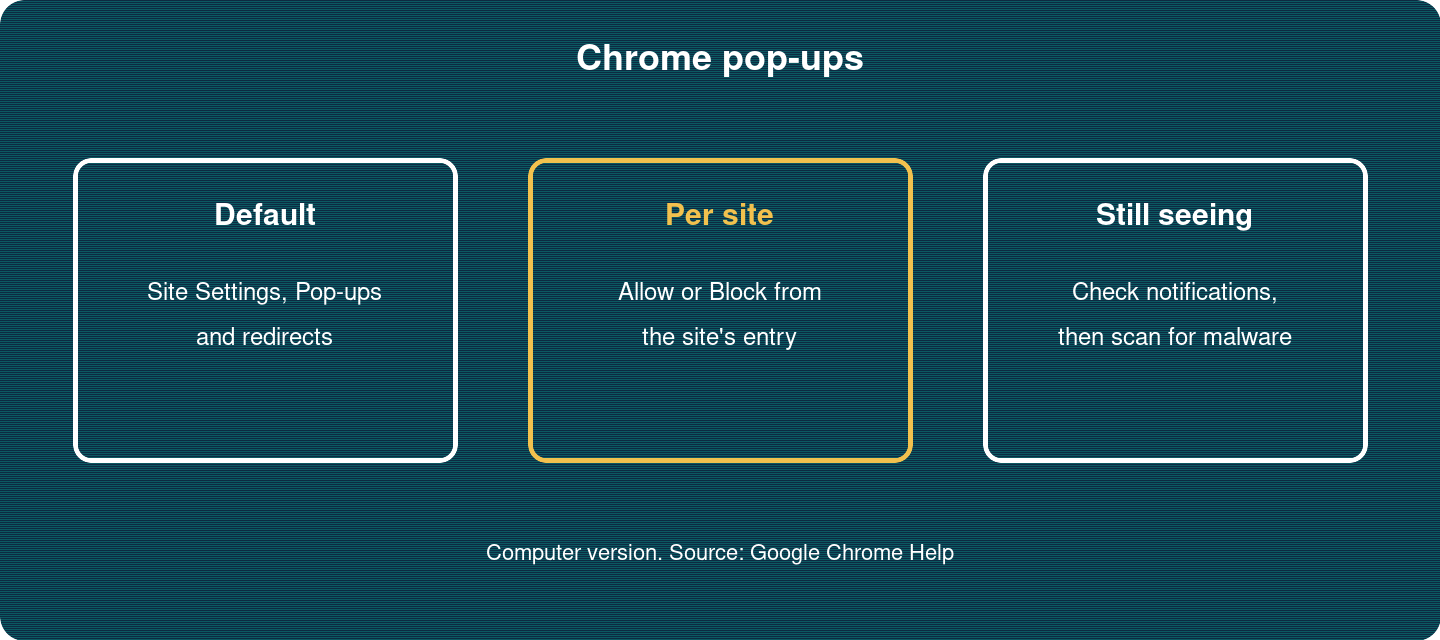
If the site is not listed, click Add next to "Not allowed to send pop-ups or use redirects" and enter its address. Google says to use the pattern [*.]example.com to cover the whole site.
Two other cases from Google. Chrome can remove notification permission from sites you have not visited in a while and show an alert when it does. To allow one again, go to Settings, Privacy and security, Safety Check, then Safety recommendations, or open the site and re-allow it. On a Chrome device from work or school you cannot change the pop-up setting yourself, because your network administrator controls it. If pop-ups are blocked on a site you own, Google points to the Abusive Experience Report to see whether it found a problem.
Your bank opens a statement in a new window and Chrome blocks it. Click Pop-up blocked, open the statement link, and choose Always allow for that one bank site. Leave the default on for everything else. If strange windows appear on other sites, check for notification subscriptions first, then run a scan: Chrome Safe Browsing levels and run a virus scan in Windows Security help.