Create Reminders With Dates, Locations and Urgent Alarms on iPhone
Set a time, a place or an urgent alarm in Reminders. Based on Apple Support, 9 October 2026.
Set a time, a place or an urgent alarm in Reminders. Based on Apple Support, 9 October 2026.
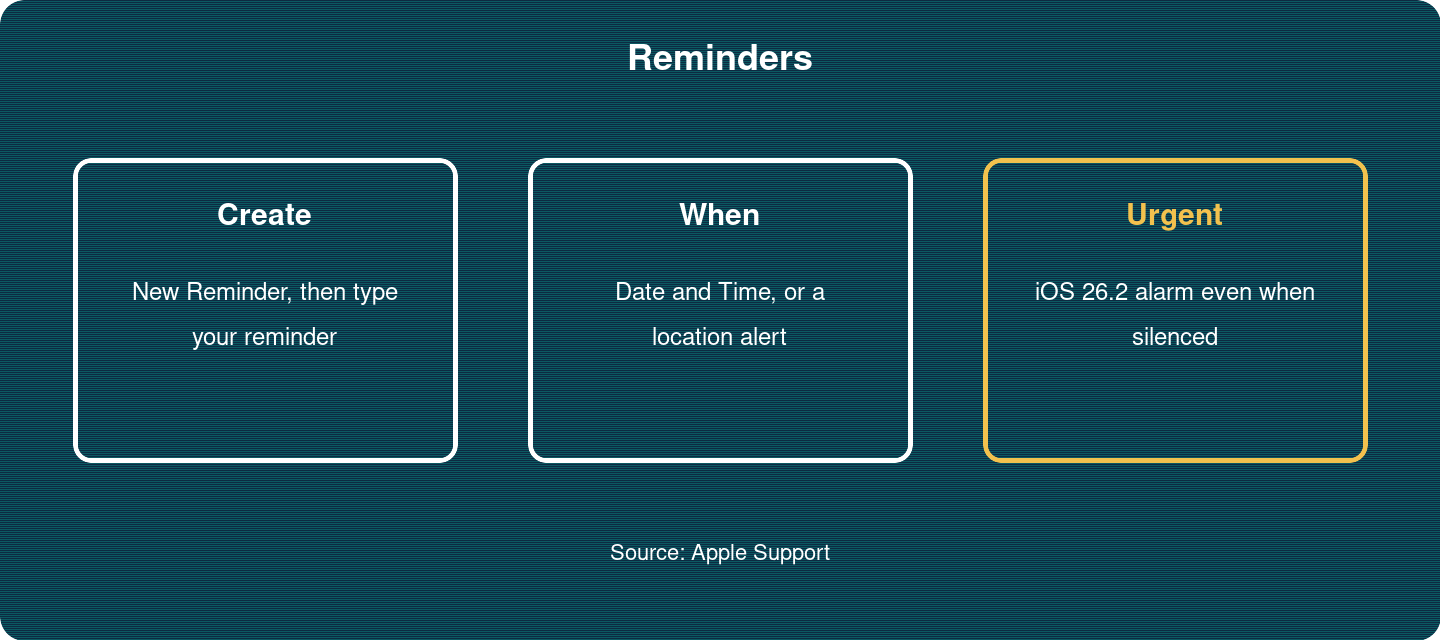
Reminders can alert you at a time or a place. This guide follows Apple Support (published 9 October 2026) and covers creating a reminder, setting a time or location, and urgent alarms. The Apple page also covers subtasks, attachments and recovering deleted reminders.
To keep reminders on all your Apple devices, turn on iCloud Reminders: Settings, your name, iCloud, then under Saved to iCloud tap See All and turn on Reminders.
In iOS 26 you can also create reminders from Control Center or the Action button on supported iPhones.
Tap the Date and Time button and pick Today, Tomorrow, This Weekend, Next Week, or Custom. Apple says reminders use your current location's time zone by default. In iOS 26 you can choose one in Settings, Apps, Reminders, Time Zone. A date with no time notifies at 9:00 AM by default. You can change that under All-Day Reminders in the same settings.
Tap the Location button, pick an option or Custom, choose arriving or leaving, and set the area size. Location Services must be on.
In iOS 26.2 an urgent reminder schedules an alarm when it is due, even if the device is silenced or a Focus is on.
Urgent alarms only ring on the device Find My uses as your location. If you do not get the alarm, check Find My, Me, to see which device that is. Also allow Alarms for Reminders in Settings, Apps, Reminders. Urgent reminders need iCloud Reminders.