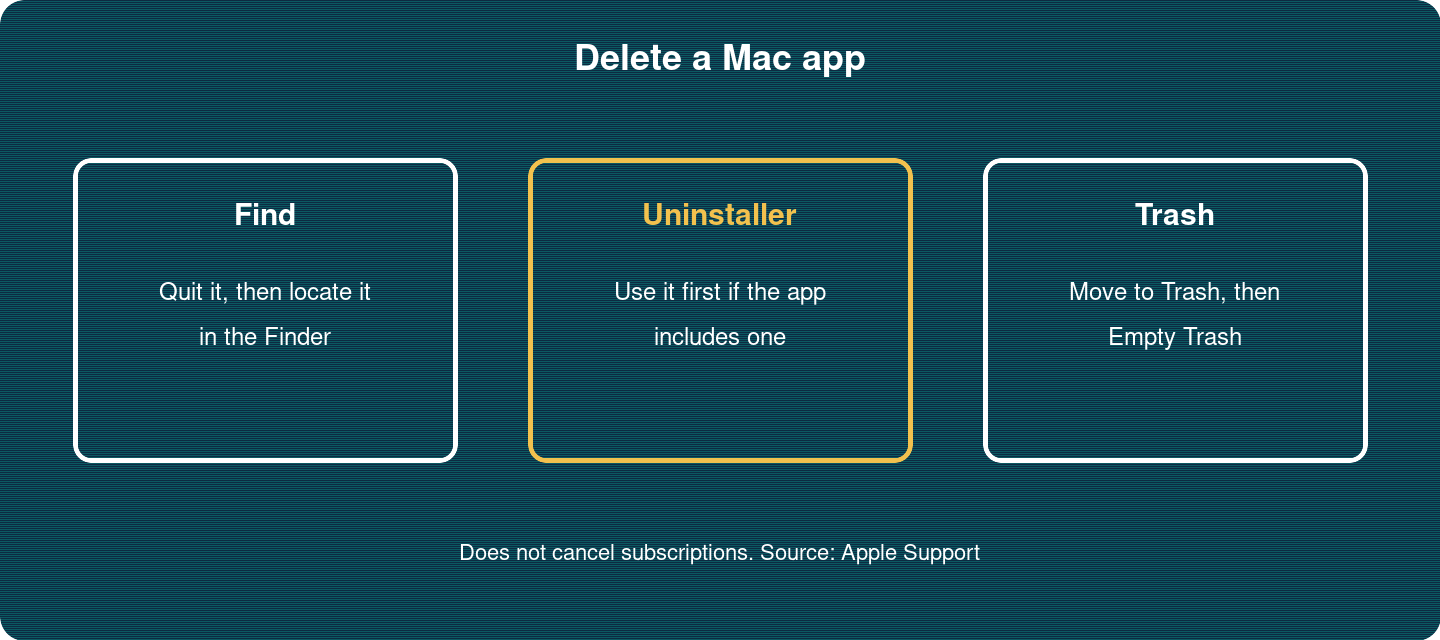
Find the app, use its uninstaller if it has one, move it to the Trash, and what cannot be deleted. Based on Apple Support, 8 June 2026.
Autobaselli · 2 min read
Deleting an app on a Mac frees the space it used. This guide follows Apple Support (updated 8 June 2026).
Uninstalling a Mac app in three steps.
Before you begin
Deleting an app does not remove documents or files you made with it, but you may need the app to open them.
Deleting an app does not cancel a subscription you bought through it.
Delete an app
Quit the app if it is open.
Find it in the Finder. Search with Spotlight, then hold Command while double-clicking the result. Most apps are in the Applications folder, and a few are in the Applications folder inside your home folder.
If the app is not made by Apple, check for an Uninstall or Uninstaller app in the same folder. Apple says that is the best way to remove login items, extensions and other data the app stored elsewhere. Some apps have an uninstall, remove or reset option inside the app.
If there is no uninstaller, drag the app to the Trash, or select it and choose File, then Move to Trash.
If asked, enter an administrator name and password. It is usually the one you use to log in.
Choose Finder, then Empty Trash to free the space for good.
If you cannot delete an app
Apps your Mac needs, including many installed by macOS such as Mail, Music, Books, Notes, Podcasts, Maps, News and Stocks, cannot be deleted in the Finder. Neither can anything in the System folder.
If the Mac says the app is in use, make sure it is closed. If needed, restart or start up in Safe Mode and try again.
Worked example
You remove a video editor you no longer use. Quit it, open its folder, and look for an uninstaller before using the Trash. If you pay for it monthly, cancel the subscription separately or it keeps billing. For general space problems on a PC, see free up space on a Windows PC.