Fix Wi-Fi Problems in Windows: From Quick Checks to Network Commands
Troubleshooter, forgetting the network, restarting the modem, the five reset commands, driver reinstall and the ping test. Based on Microsoft Support.
Autobaselli · 2 min read
When a Windows PC cannot get online over Wi-Fi, Microsoft's support page gives a ladder of fixes from simple to technical. This guide follows that page for Windows 11 and Windows 10. Try each step, then test before you go on.
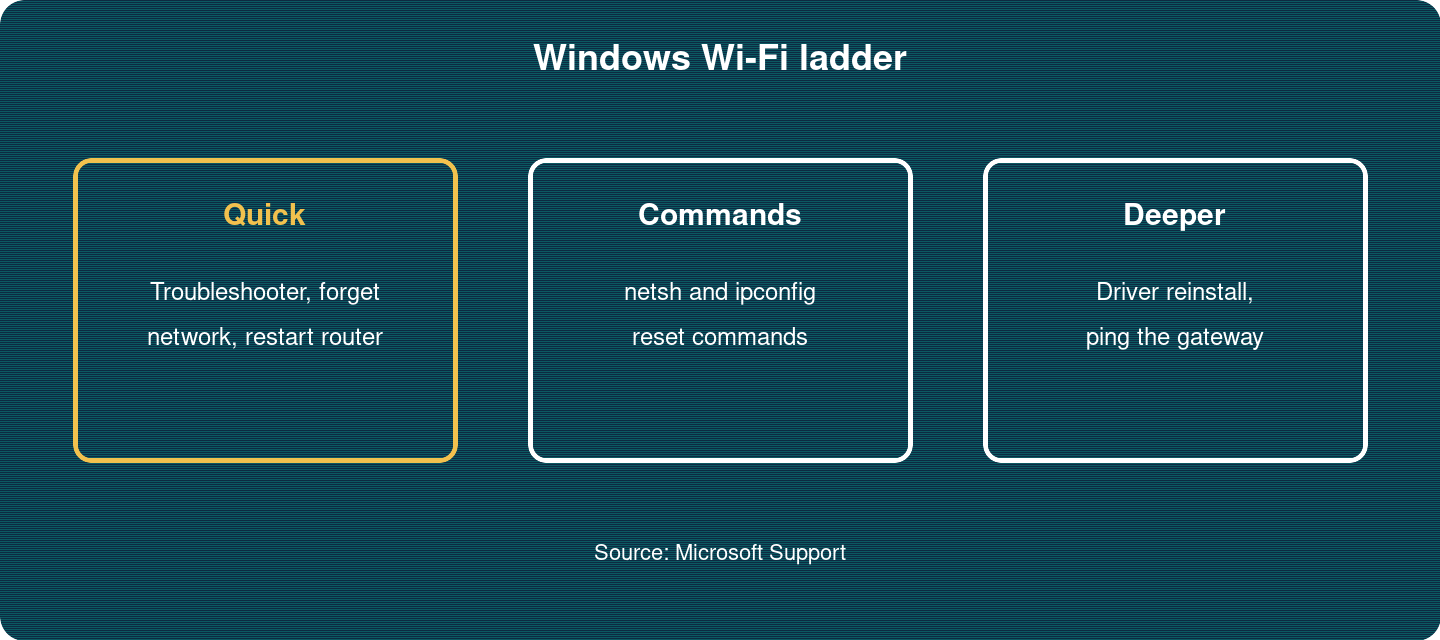
Microsoft's ladder, from simple to technical.
Start with the quick checks
Run the Network troubleshooter. In Settings, Network and Internet, Status, choose Network troubleshooter. Microsoft says it runs diagnostics and tries to fix most problems.
Check the connection status. Select the network icon in the taskbar, make sure Wi-Fi is on, and see whether your network shows Connected.
Check Airplane mode is off.
Forget and reconnect. Settings, Network and internet, Wi-Fi, Manage known networks. Select your network, choose Forget, then reconnect and enter the password.
Restart the modem and router. Unplug the router, then the modem, wait at least 30 seconds, plug the modem in and wait for its lights to stop blinking, then plug in the router and wait a few minutes. Everyone on the network is briefly disconnected. If lights stay on after unplugging a modem, it may have a backup battery to remove.
Try the other frequency. Many routers broadcast 2.4 GHz and 5 GHz as separate networks. Try the other one. See 2.4 vs 5 vs 6 GHz.
Try another device on the same network. If it works, Microsoft says the problem is likely your PC.
If those fail
Network commands. In Command Prompt run as administrator, run in order: netsh winsock reset, netsh int ip reset, ipconfig /release, ipconfig /renew, ipconfig /flushdns. Then check again.
Reinstall the network adapter driver. Microsoft suggests this if the problem started after a recent update. First download the latest adapter driver from the PC maker's site onto a USB drive, as a backup. Then in Device Manager, expand Network adapters, uninstall the device with "Attempt to remove the driver" checked, and restart. Windows will usually reinstall a driver on its own.
Ping test. Run ipconfig to find your Default gateway address, then ping that address. Replies mean the PC reaches the router, so the fault may be the modem or the ISP.
Reading the Wi-Fi icon
Microsoft says a connected icon with the problem continuing may mean a specific app, a website or a firewall is the cause. A moving signal bar means it is still connecting.
Worked example
Your laptop shows Connected but no pages load, and your phone works. Run the troubleshooter, forget and rejoin the network, then try 5 GHz. If the issue began right after a Windows update, the adapter driver step fits. If the ping to the gateway succeeds but nothing loads, the router is reachable and the issue is further out: restart the modem and contact the ISP. Compare the iPhone path in iPhone can't connect to Wi-Fi.