Import SIM Card Contacts to iPhone: Steps and Other Ways to Move Contacts
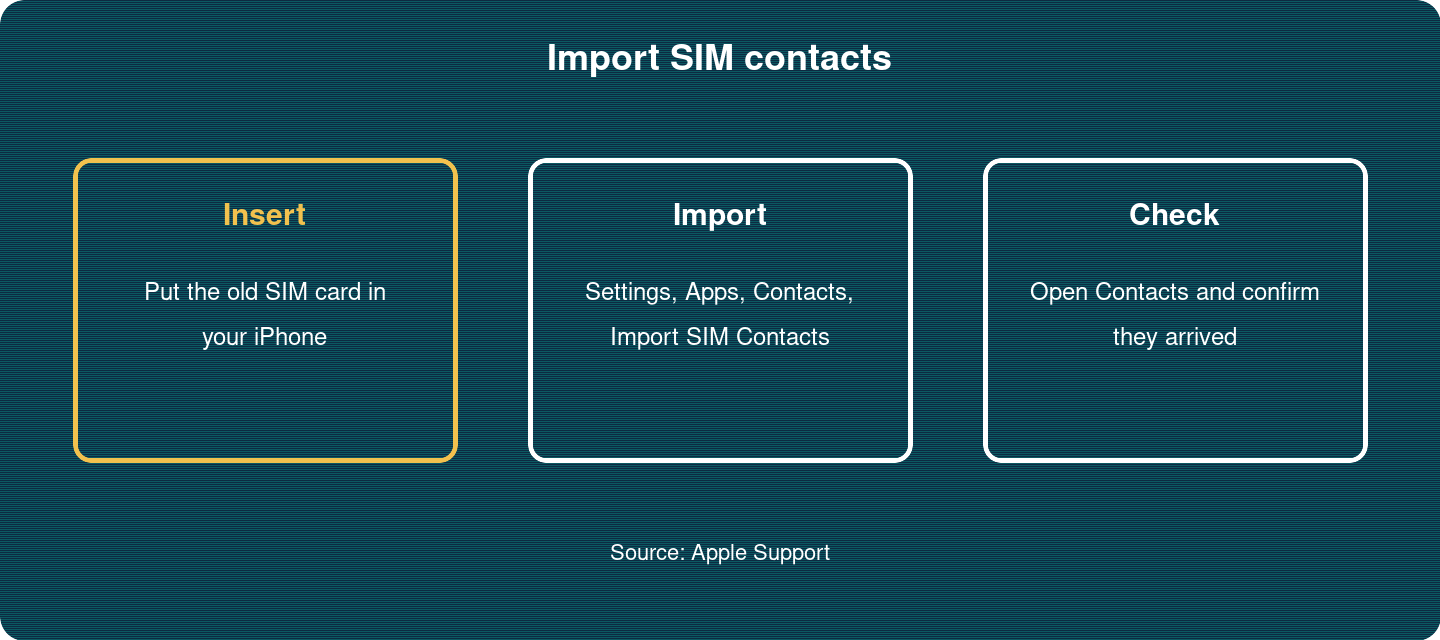
Put the old SIM in your iPhone, then Settings, Apps, Contacts, Import SIM Contacts. iPhone does not store contacts on the SIM, so this is a one-time import.
Put the old SIM in your iPhone, then Settings, Apps, Contacts, Import SIM Contacts. iPhone does not store contacts on the SIM, so this is a one-time import.

Short answer: put your old SIM card, the one that holds the contacts, into your iPhone. Open Settings, tap Apps, tap Contacts, then tap Import SIM Contacts. Apple says this works "if your SIM card supports it". An iPhone does not store contacts on the SIM card, so this is a one-way import, not a sync. Source: Apple Support, 14 September 2026.
| Where your contacts are | What Apple says to do |
|---|---|
| On an old SIM card | Use Import SIM Contacts (steps below) |
| On another iPhone | Use iCloud or another mail account to back up or transfer between devices. The SIM is not used for this. |
| In an internet-based mail account | Set up mail, contacts and calendar on the iPhone |
| On a non-Apple phone, not on the SIM | Check the phone maker's website or an app store, or ask your carrier |
Afterwards you can put your newer SIM card back in.
Apple says the information imported depends on how your previous phone stored it on the SIM. For more help with a non-Apple phone, check the manufacturer's website or an app store, or contact your carrier. This post does not list which fields a SIM can hold, because Apple's page does not say.
Apple's page does not describe this case beyond "if your SIM card supports it". Check that the SIM fits and is the one that held your contacts, then ask your carrier.
For the whole move, see back up an iPhone and move to a new one. For photos, see transfer iPhone photos to a Mac or PC.