iPhone App Frozen, Crashing or Won't Open: Fixes in Order
Close, restart, update, reinstall, then contact the developer. Plus why closing all your apps does not speed up your phone. Based on Apple Support.
Close, restart, update, reinstall, then contact the developer. Plus why closing all your apps does not speed up your phone. Based on Apple Support.

When one app freezes, crashes or will not open, there is a short order of fixes that works from least to most disruptive. This guide follows two Apple Support pages: one on closing an app (15 October 2026) and one on apps that stop responding (24 March 2026). It covers iPhone and iPad.
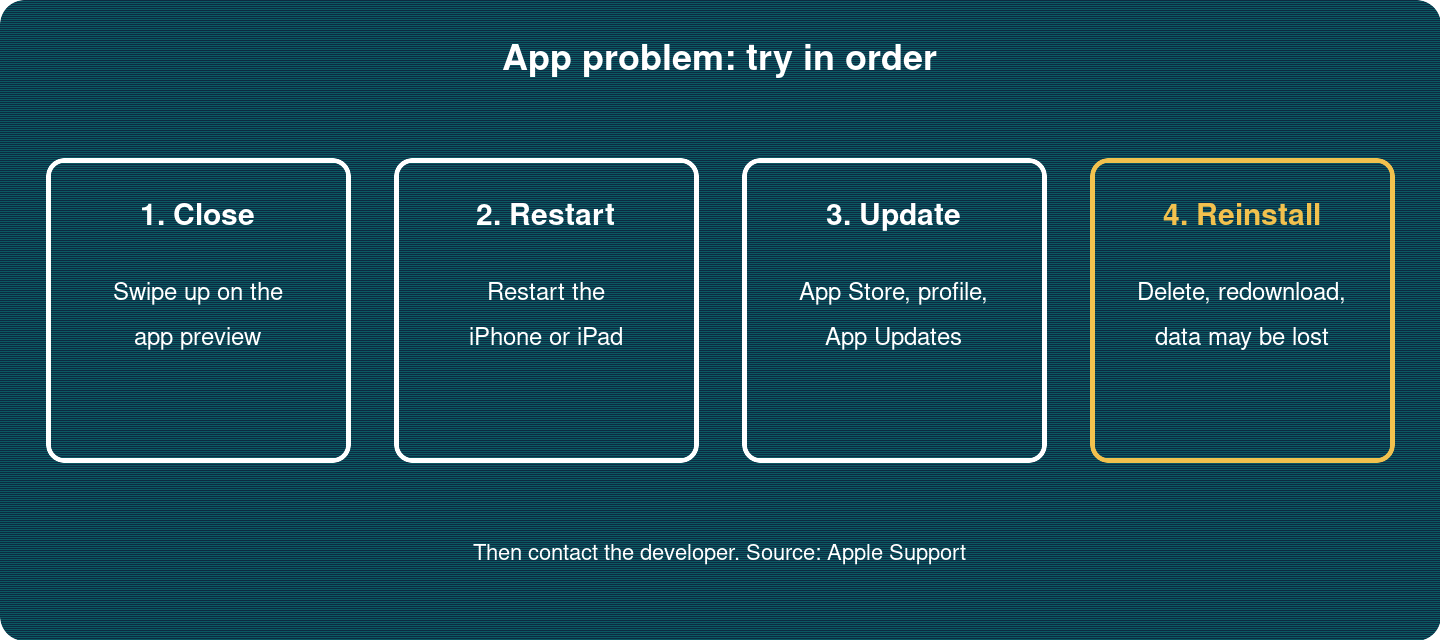
Apple says to close an app only if it is unresponsive.
Then open the app again.
Restart the iPhone or iPad, then open the app.
Open the App Store, tap your profile icon, then App Updates. If the app has no update, update the software on the device itself.
Apple warns you might lose data stored in the app when you delete it. Check what the app keeps before doing this, for example whether it saves to an account.
If the app came from the App Store and still fails, Apple says to contact the app developer. If you bought it recently and no longer want it, you can request a refund.
Apple says that if your iPhone runs slowly or drains the battery quickly, closing all your apps does not affect overall performance. Recently used apps only use resources and power when they are active or doing specific background tasks. So swiping everything away daily does not help. If the whole phone is slow, see iPhone running slow and iPhone battery health.
A banking app shows a white screen. Close it, reopen it. Still white: restart the phone. Still white: check App Updates, since an old version may not work with current software. Only then delete and redownload, after making sure you know your login. If the app is still broken, the developer is the right contact, not Apple. If a "support" message asks for your password, see how to spot a phishing text.