iPhone Screen Won't Rotate: Check the Lock, the App and the Sensor
Turn off Portrait Orientation Lock, try an app that rotates, test the sensor with Level, then restart. Based on Apple Support, 28 April 2026.
Turn off Portrait Orientation Lock, try an app that rotates, test the sensor with Level, then restart. Based on Apple Support, 28 April 2026.

Your iPhone screen should turn sideways when you turn the phone, but sometimes it stays stuck in portrait. Apple Support (updated 28 April 2026) lists a short set of checks. This guide follows that page and is for iPhone and iPod touch.
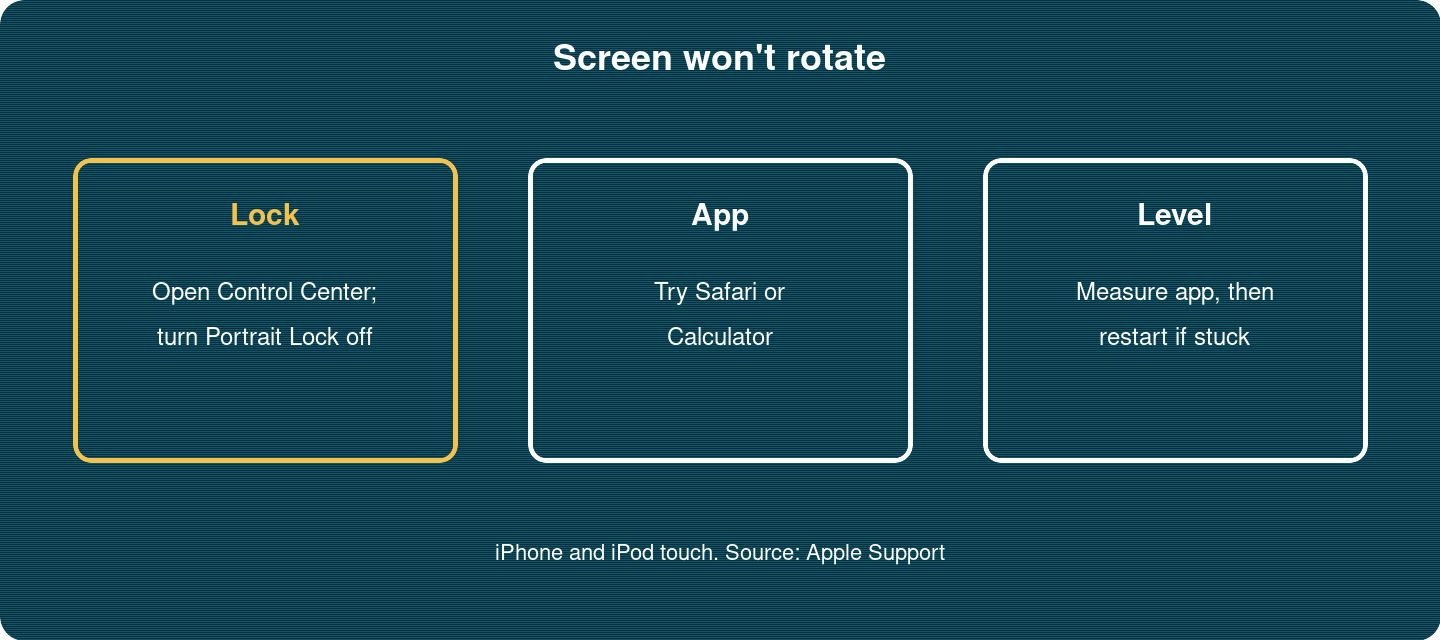
If you cannot see the button, Apple says you can add more controls to Control Center.
Not every app supports landscape, so the screen may stay upright even with the lock off. Apple suggests trying Calculator or Safari, which do rotate.
If the level is stuck, Apple says to restart the phone. Our guide restart your iPhone by model shows how.
You turn your phone to watch a video and nothing happens. Open Control Center: the lock icon is lit. Tap it off, turn the phone, and the video fills the screen. If the lock was already off, open Safari and turn the phone there. It rotates in Safari but not in your game? The game simply does not support landscape.