Record Your iPhone Screen: With Sound, Where It Saves and What to Do If There's No Record Button
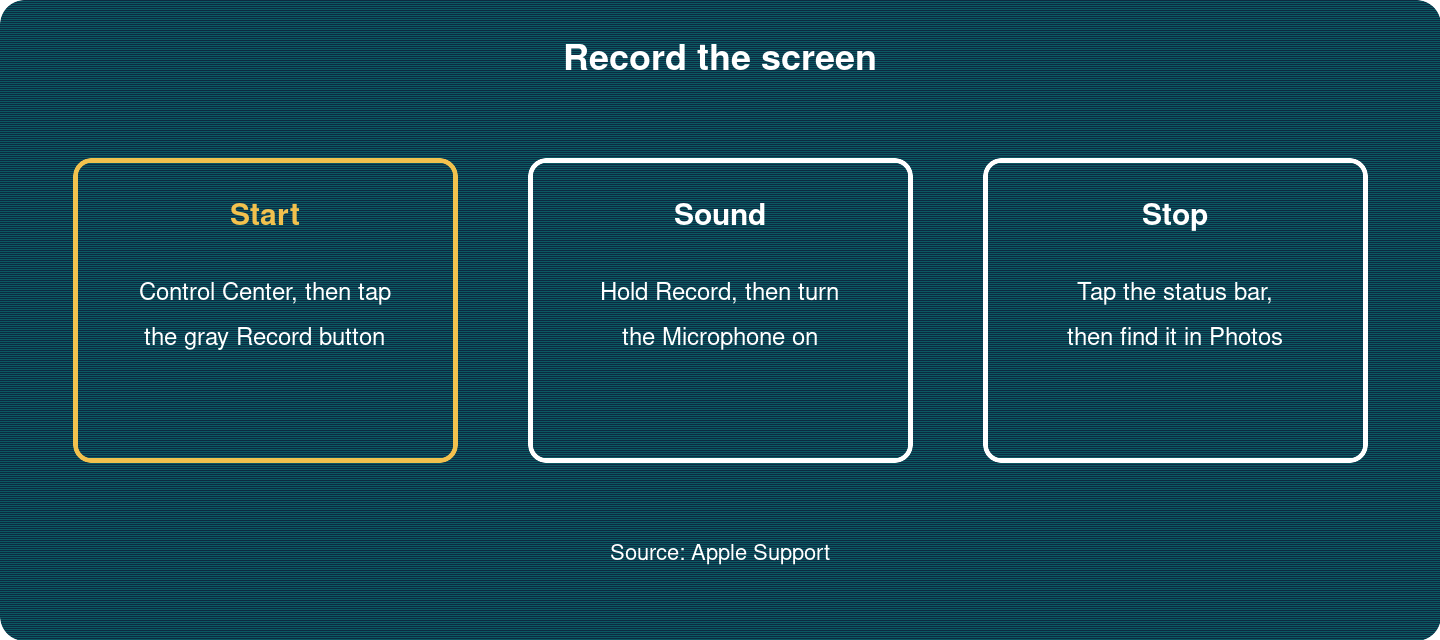
Control Center, tap the gray Record button, wait for the countdown. Stop from the red status button. For sound, touch and hold Record and turn on the microphone first. Find it in Photos.
Autobaselli · 2 min read
Short answer: open Control Center, tap the gray Record button, wait for the three-second countdown, then leave Control Center. To stop, tap the Screen Recording button at the top of the screen and tap Stop. To record sound, touch and hold the Record button first and turn the Microphone on. The recording is in the Photos app, in your Library. If you cannot see the Record button, add it (steps below). Sources: Apple Support, 14 September 2026, and Apple's iPhone User Guide.
Screen recording in three steps.
Open Control Center on your iPhone
Your iPhone
Open Control Center
iPhone X or later (Face ID)
Swipe down from the top-right corner of the screen. Apple says swiping too close to the top center may open Notification Center instead.
iPhone SE, and iPhone 8 and earlier
Swipe up from the bottom edge of any screen
Record the screen
Open Control Center.
Tap the gray Record button, then wait for the three-second countdown.
Exit Control Center to record your screen.
To stop, tap the Screen Recording button at the top of your screen, then tap Stop. Or open Control Center and tap the red Record button.
To find the recording, open Photos and select it in your Library.
Record with sound
Open Control Center.
Touch and hold the gray Record button.
Tap the Microphone button to turn it on.
Tap the gray Record button, then wait for the countdown.
Exit Control Center to record. Stop the same way as above.
No Record button in Control Center?
Apple says to add it to Control Center. In Apple's User Guide, you customize Control Center like this:
Open Control Center.
Tap the Add button of Control Center to begin editing.
Tap Add a Control at the bottom of the screen to open the controls gallery, then tap a control to add it.
Close Control Center by swiping up from the bottom center of the screen (Face ID models).
The User Guide excerpt does not name the Record control in its list. Look for it in the controls gallery.
Limits Apple mentions
Some apps might not allow you to record audio or video.
You can't record your screen and use screen mirroring at the same time.