How to Turn Do Not Disturb On or Off on iPhone (and Stop It Turning On Itself)
Turn it off in Control Center, find the schedule that turns it on, and choose who can still reach you. Based on Apple Support, 23 June 2026.
Turn it off in Control Center, find the schedule that turns it on, and choose who can still reach you. Based on Apple Support, 23 June 2026.
Do Not Disturb is a Focus option that silences calls, alerts and notifications. While it is on, its icon shows in the status bar and on your Lock Screen. This guide follows Apple Support (published 23 June 2026) for iPhone and iPad with iOS 15 or iPadOS 15 and later. Update to the latest version first.
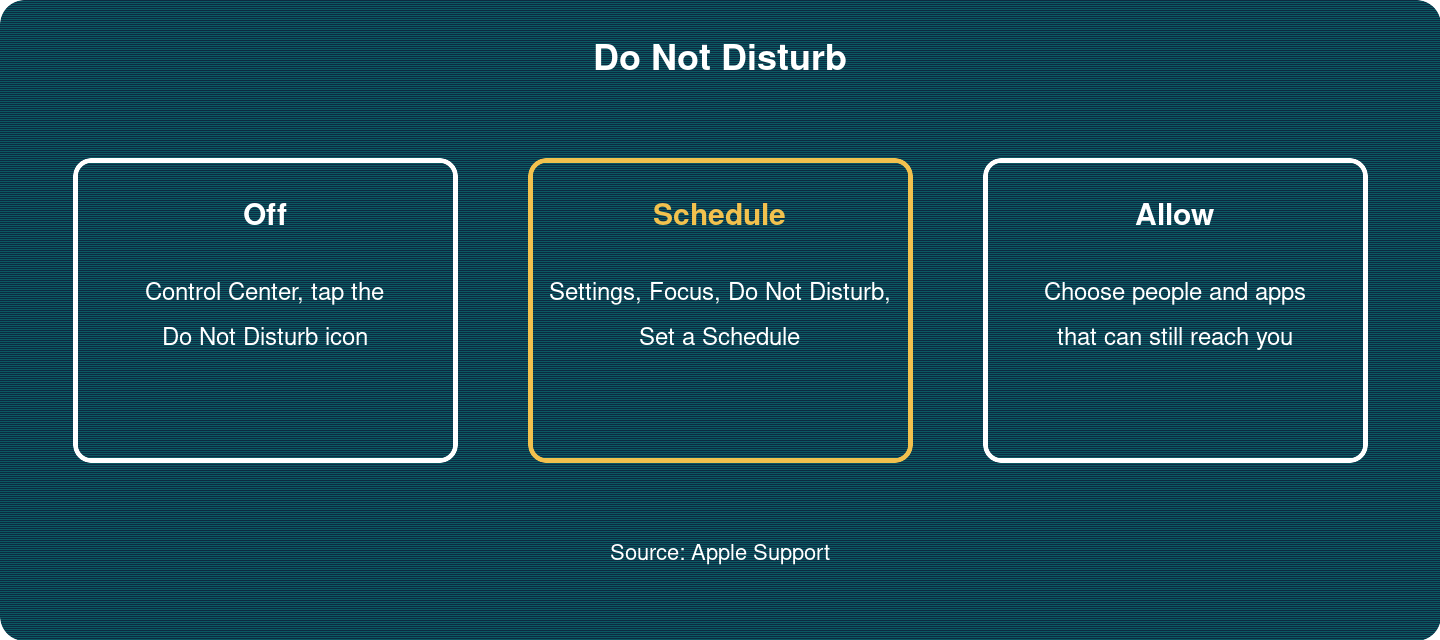
If the icon dims and the button text changes to "Focus", Do Not Disturb is off. If you see a different Focus instead (Personal, Work, Sleep, Reduce Interruptions or Driving), tap its icon to turn it off. Other Focus options can also stop calls, alerts and notifications. If calls are going to voicemail, see iPhone calls go straight to voicemail.
It may be on a schedule.
You can also ask Siri. If you use Share Across Devices in your Focus settings, a notice that it is on or off appears on your other Apple devices.
Open Settings, tap Focus, then tap Do Not Disturb. Then choose:
You want quiet nights but still want your partner's calls. In Settings, Focus, Do Not Disturb, add your partner under Allow Notifications, then set a schedule for night hours. In the morning, if the icon is still showing, open Control Center and tap it to turn it off.