Use an iPad as a Second Display for Your Mac With Sidecar
Extend or mirror a Mac on an iPad, move windows and use the sidebar. Based on Apple Support, 14 September 2026.
Extend or mirror a Mac on an iPad, move windows and use the sidebar. Based on Apple Support, 14 September 2026.

Sidecar lets an iPad extend or mirror your Mac desktop. This guide follows Apple Support (published 14 September 2026) and covers the basics. The Apple page lists the exact device and software requirements.
If you want one keyboard and mouse to control both, with the iPad keeping its own Home Screen and apps, Apple says to use Universal Control instead.
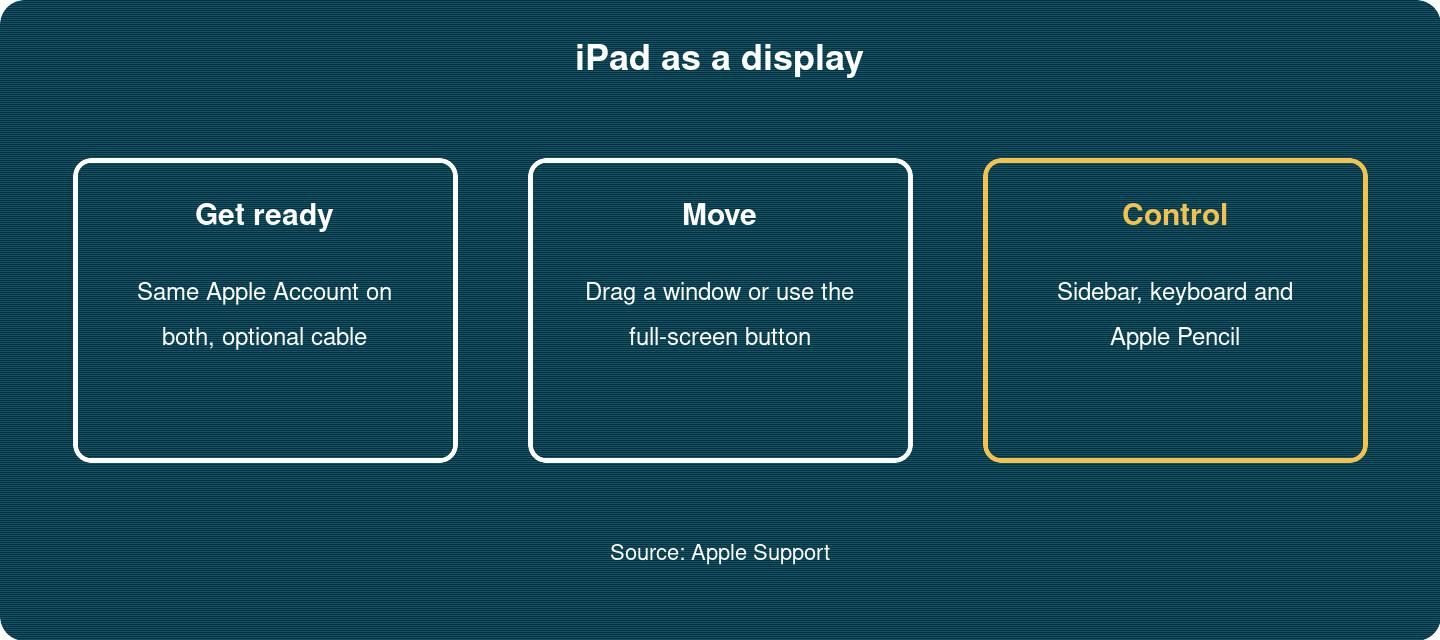
On the Mac, hover over a window's full-screen button and choose the option to move it to the iPad, or drag the window over. To bring it back, hover over the full-screen button on the iPad and choose Move Window Back to Mac, or drag it back. To mirror instead of extend, pick your iPad in the Screen Mirroring menu in Control Center or the menu bar.
It holds buttons for the menu bar, the Dock, Command, Option, Control and Shift keys, undo, the onscreen keyboard, the Home Screen and disconnect.
Use the App Switcher or the sidebar's Home Screen button. This suspends Sidecar until you switch back.
On macOS Ventura 13 or later: Apple menu, System Settings, Displays, then click your iPad at the top. You can show the sidebar or Touch Bar on either side, or turn them off.