Use Windowed Apps and Multitasking on iPad
Turn on Windowed Apps, resize windows, use side by side and Slide Over. Based on Apple Support, 14 September 2026.
Turn on Windowed Apps, resize windows, use side by side and Slide Over. Based on Apple Support, 14 September 2026.

iPadOS 26 and later can show apps in windows you can move and resize. This guide follows Apple Support (published 14 September 2026). Make sure the iPad runs the latest iPadOS.
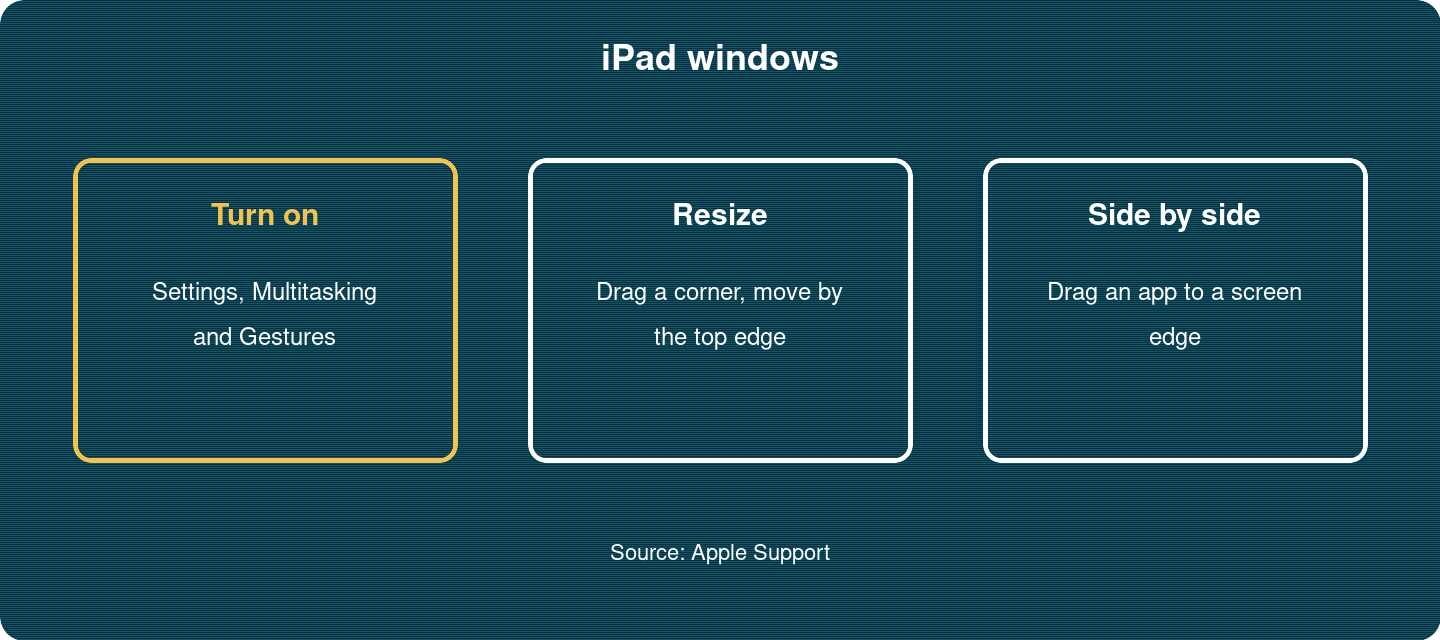
From a full-screen app, drag another app from the Dock, App Library or Spotlight to the left or right edge. Drag the bar in the middle to resize. If windows are already open, swipe one to a side, then swipe another to the other side.
Touch and hold the window controls button and tap Enter Slide Over. The window stays on top of others. Swipe its edge off screen to hide it, and swipe from that edge to bring it back. To exit, drag the app to the middle, or touch and hold the controls and tap Exit Slide Over.
Swipe down from the top middle of the screen, or move the pointer to the top, to search an app's commands.