Windows Firewall Explained: Private vs Public Networks and When to Leave It On
What the firewall does, how private and public networks differ, and why to allow one app instead of turning it off. Based on Microsoft Support.
What the firewall does, how private and public networks differ, and why to allow one app instead of turning it off. Based on Microsoft Support.

Windows Firewall filters network traffic and blocks unauthorised access to your PC. Microsoft's support page explains private and public networks and how to manage the firewall in the Windows Security app. This guide follows that page.
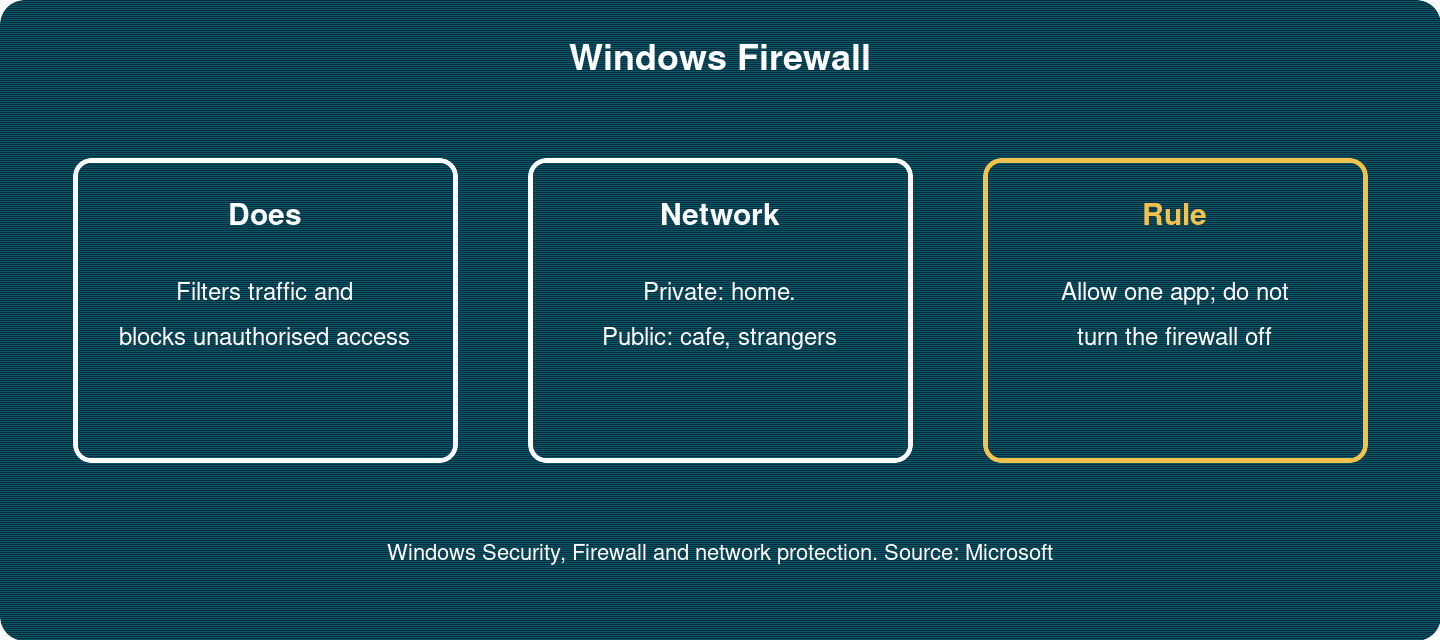
Microsoft says the key difference is whether other devices on the same network may see, and maybe connect to, your device. Your home network is an example of a private network, where the other devices are yours and your family's. A coffee shop's Wi-Fi is a public network, where most other devices belong to strangers. Security controls are stricter on public networks.
Microsoft warns that turning the firewall off could make your device more vulnerable to unauthorised access. If an app you need is blocked, allow that app through the firewall instead of turning the firewall off.
Under Incoming connections there is a box for "Blocks all incoming connections, including those in the list of allowed apps". It ignores the allowed apps list and blocks everything. Microsoft says this increases security but might cause some apps to stop working.
If an organisation manages your device, policy may stop you changing the firewall. Contact your administrator.
At a cafe, Windows asks whether the network is private or public. Pick public, since you do not know the other devices. At home, private is the usual choice. A game or app says it cannot connect: allow it through the firewall for that app, rather than disabling the firewall. For public hotspots in general see is public Wi-Fi safe, and for scanning your PC see run a virus scan with Windows Security.