Apple Account Hacked? Signs and the Steps to Take Back Control
The signs of a compromised Apple Account, the five steps in order, and how to lock it down afterwards. Based on Apple Support.
Autobaselli · 2 min read
An Apple Account holds your devices, photos, messages and purchases. If you think someone else has access, Apple's support page gives the signs to look for and the steps to take back control. This guide follows that page, published 5 December 2025.
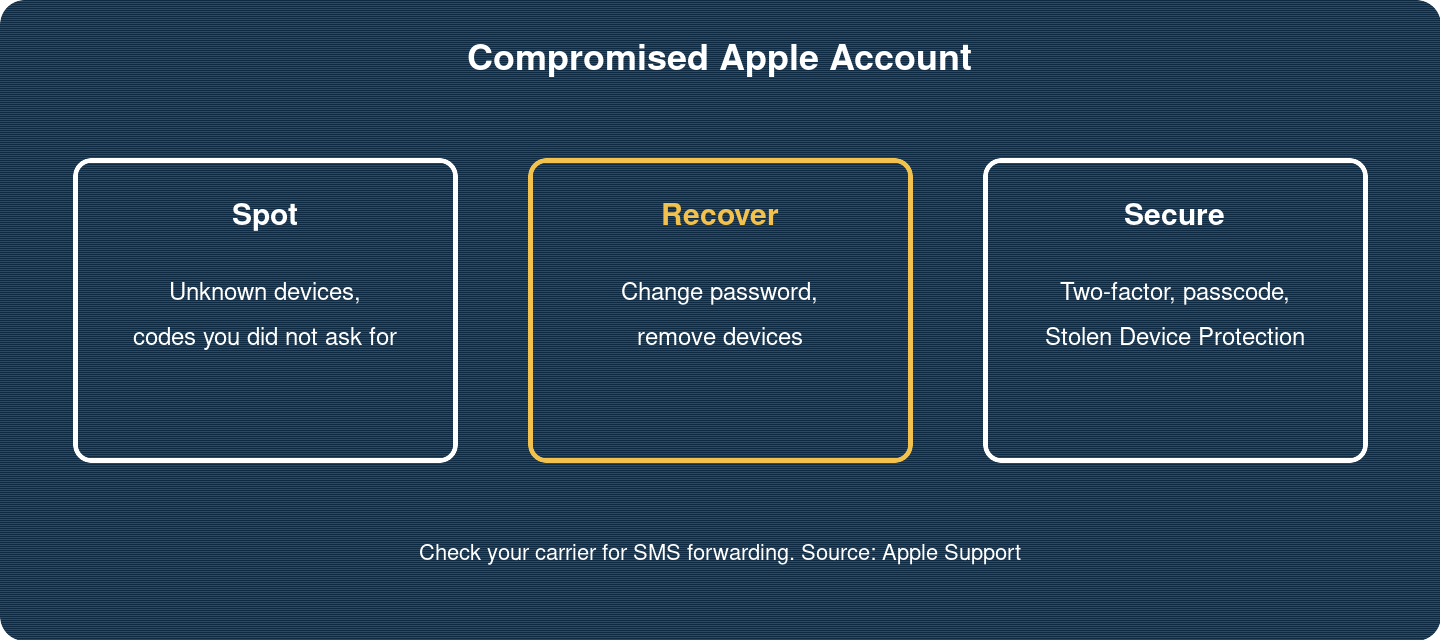
Apple's recovery flow in three stages.
Signs your account may be compromised
Apple tells you about account activity you do not recognise, such as a sign-in on an unknown device or a password change you did not make.
You get a two-factor authentication code you did not request.
Unusual activity: messages you did not send, items deleted that you did not delete, changed account details, trusted devices you did not add, or purchases you do not recognise.
Your password no longer works.
Your device was locked or put in Lost Mode by someone other than you.
Take back control, in order
Change your Apple Account password to a strong, unique one.
If someone already changed it, reset it.
Go to account.apple.com and correct any personal or security information that looks wrong.
Under Devices on account.apple.com, remove any device you do not recognise.
Check with your email provider and mobile carrier that you control every email address and phone number linked to the account. Apple's example: confirm with your carrier that SMS forwarding has not been set up for a linked number.
If you cannot reset the password or sign in, Apple says to go to iforgot.apple.com to start account recovery. Recovery involves a waiting period.
Then make it harder to take over again
On each device, open Settings and tap your name to confirm the Apple Account signed in is yours. Check services signed in with it, including FaceTime, Messages, Media and Purchases, Mail and Calendar.
Turn on two-factor authentication if it is not on. Apple says it is designed to stop others getting in even if they know your password.
For extra protection against targeted phishing, use Security Keys.
Only you should know the password. Apple says that if someone you do not know or trust can sign in, the account is not secure.
Use a device passcode and, on iPhone, turn on Stolen Device Protection.
Worked example
You get a code you never requested and then a message saying your account was accessed. Do not tap the link in the message. Change the password directly at account.apple.com, remove any unknown device, and check your carrier for text forwarding. Then turn on two-factor authentication. Messages like this are often phishing, so see how to spot a phishing text. Good password habits are in strong passwords and password managers, and a lost phone is covered in what to do if an iPhone is stolen.