Avoid and Report Phishing Emails: Google's Four Tips
What phishing is, why you should never reply with private details, and what to do when an email says your account will close. Based on Gmail Help.
What phishing is, why you should never reply with private details, and what to do when an email says your account will close. Based on Gmail Help.
Phishing emails try to steal your details by looking like someone you trust. Google's Gmail Help page explains what phishing is, how to avoid it and how to report it. This guide follows that page.
Google defines it as an attempt to steal personal information or break in to online accounts using deceptive emails, messages, ads or sites that look like ones you already use. Phishing content may ask for personal or financial information, ask you to click links or download software, or impersonate an organisation or someone you know. It can look exactly like a real message.
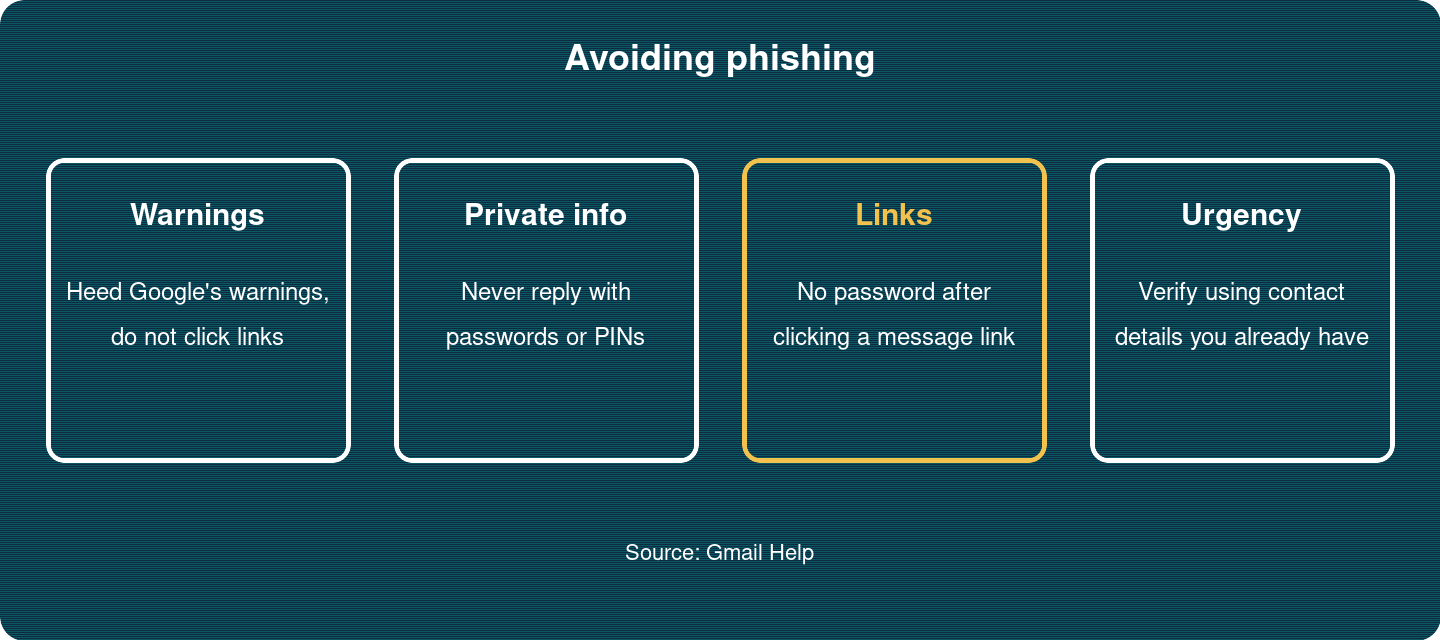
Gmail automatically tries to identify phishing emails, so look out for its warnings about harmful emails and attachments. Google says Gmail will never ask you for your password over email. For a suspicious message, check that:
Google also suggests Safe Browsing in Chrome (Enhanced Protection adds more), checking for unsafe saved passwords, and Password Alert for Chrome, which warns you if you type your Google password on a non-Google site.
If Gmail marked a real email as phishing, use the same steps and click Report not phishing. Google says that when you manually move an email to Spam, it receives a copy of the email and its attachments and may analyse them to protect users.
An email says your account will close in 24 hours unless you "verify now". The urgency is the first sign. Do not click. Open the service's site by typing its address, or check myaccount.google.com/notifications for a Google claim. If you already entered a password, change it and turn on two-step sign-in: see turn on two-step sign-in and recover your Google account. Texts follow the same pattern: how to spot a phishing text.