Connect AirPods to iPhone: Setup, Manual Pairing and iOS Versions
The setup animation, manual pairing for each case type, minimum iOS per model, and what to do with second-hand AirPods. Based on Apple Support.
The setup animation, manual pairing for each case type, minimum iOS per model, and what to do with second-hand AirPods. Based on Apple Support.
AirPods normally pair with an iPhone in a few taps. If the setup screen does not appear, there is a manual way. This guide follows Apple's support page (13 October 2026).
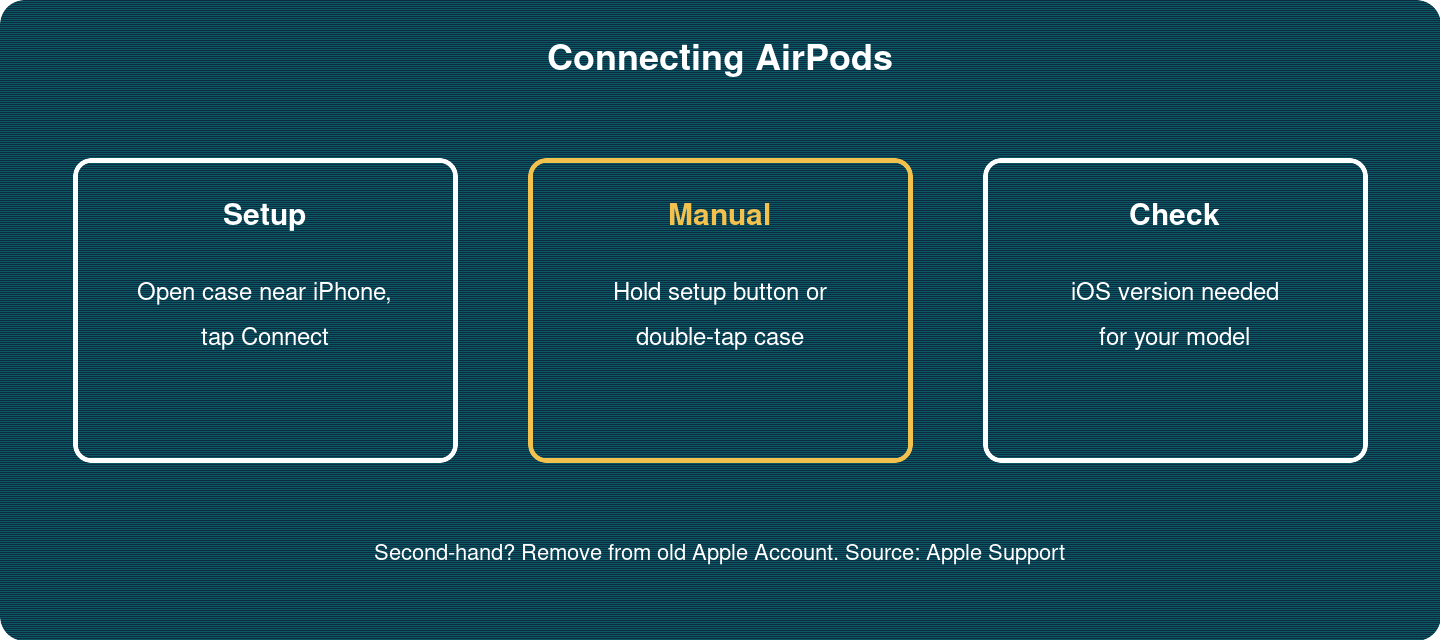
If you are signed in to iCloud, Apple says the AirPods are set up automatically with your other supported devices signed in with the same Apple Account.
Apple lists the minimum iOS for each model: AirPods 1, iOS 10.0; AirPods 2, iOS 12.2; AirPods 3, iOS 15.1; AirPods 4, iOS 18.0; AirPods Pro 1, iOS 13.2; AirPods Pro 2 (Lightning), iOS 16.0; AirPods Pro 2 (USB-C), iOS 17.0; AirPods Pro 3, iOS 26 or later. The page also lists a version for AirPods 5. If your iPhone is older than your model needs, update it first or the AirPods will not pair.
AirPods can be linked to one Apple Account, for features like automatic switching and Find My. Apple says if you want to use AirPods someone else has used, they first need to remove them from their Apple Account.
You bought AirPods Pro 2 (USB-C) and your iPhone is on iOS 16: the page says they need iOS 17.0 or later, so update first. No animation appears? Use the manual steps. They still will not pair? Ask the seller whether they removed them from their Apple Account. For other Bluetooth trouble see Bluetooth accessory won't connect to iPhone, and to set up tracking see turn on Find My.