Turn On Find My for iPhone, AirPods, Apple Watch and Mac
Where to switch on Find My, Find My network and Send Last Location before a device goes missing. Based on Apple Support, 14 September 2026.
Where to switch on Find My, Find My network and Send Last Location before a device goes missing. Based on Apple Support, 14 September 2026.

Find My only helps if it was on before the device went missing. Apple's support page (14 September 2026) lists where to switch it on for an iPhone, iPad, AirPods, Apple Watch and Mac. This guide follows that page.
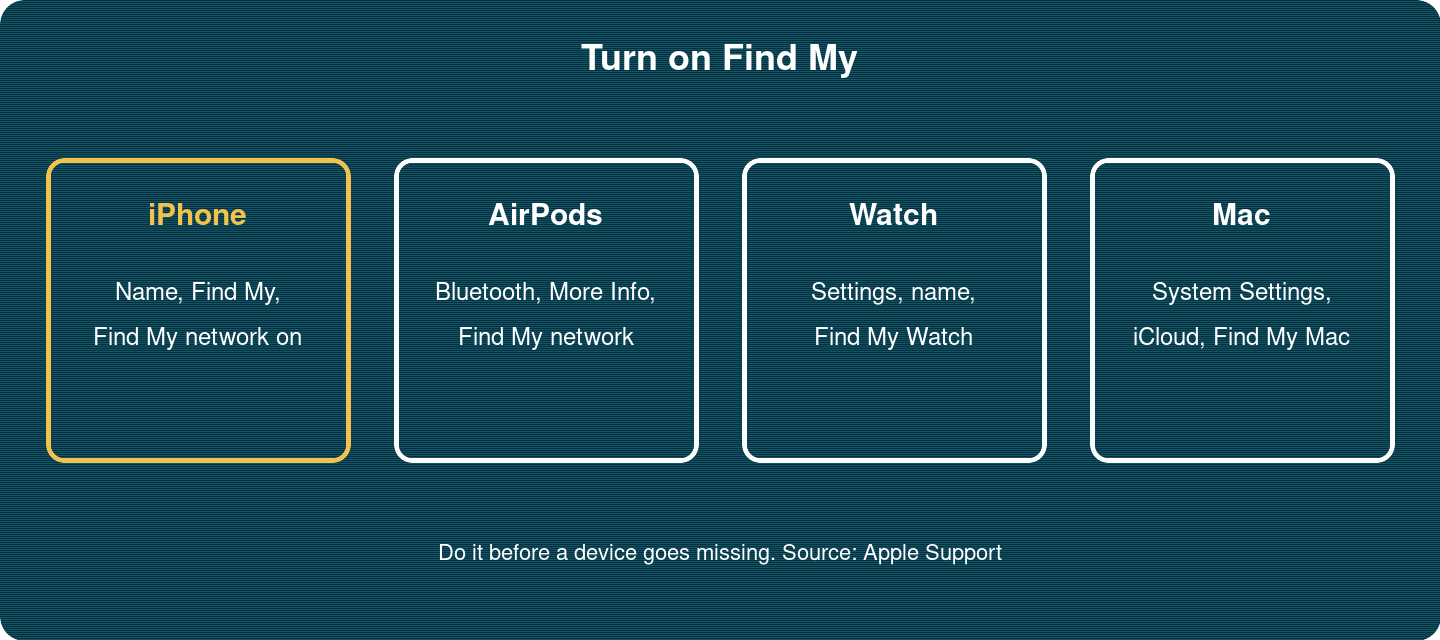
Apple says your AirPods must be paired with your iPhone or iPad, and Find My must be on for that device. Then:
Apple lists the models that can join the Find My network: AirPods 3, AirPods 4 with Active Noise Cancellation, AirPods 5 with Wireless Charging Case, all AirPods Pro, and AirPods Max.
On the watch open Settings, tap your name, scroll to your watch, tap its name, then Find My Watch, and make sure Find My network is on.
Apple menu, System Settings, your name, iCloud, See All, then Find My Mac and Turn On. Enter your Apple Account password if asked, and allow Find My Mac to use your Mac's location. To see a lost device on a map, Location Services must be on for Find My.
Apple describes it as a crowdsourced network of over a billion Apple devices that use Bluetooth to detect the approximate location of a device or accessory and report it to the owner, anonymously and encrypted. Availability and features may vary by country or region.
You are setting up a new phone. Turn on Find My iPhone, Find My network and Send Last Location. Then check the AirPods entry under Bluetooth, since they are separate. A week later you leave the phone on a train with the battery dying: Send Last Location is why you still have a starting point. If it is already gone, see stolen iPhone. For tracker alerts see AirTag alert, and for Android see find a lost Android phone.