How to Create a Screen Time Passcode on iPhone and iPad (iOS 27 and Later)
Lock Screen Time settings for your child's device or your own, and add recovery so you can reset it. Based on Apple Support, 28 October 2026.
Autobaselli · 2 min read
A Screen Time passcode keeps the limits you set in place, so nobody can change them without it. This guide follows Apple Support (published 28 October 2026). The steps below are for iOS 27 and iPadOS 27 and later. Apple has separate steps for iOS 26 and earlier.
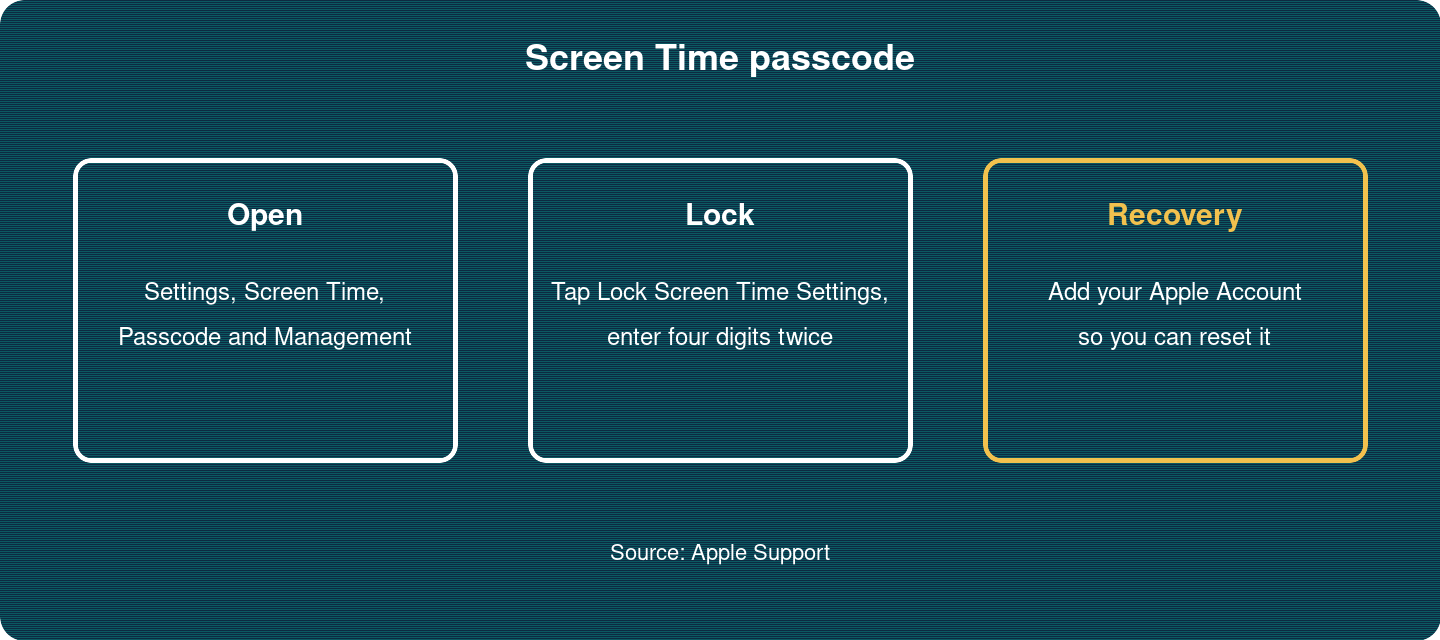
Screen Time passcode in three steps.
How it works
A Screen Time passcode is not the passcode that unlocks your device. Keep track of it, because you need it to change Screen Time settings.
For a child's device, you get a notification each time they use the passcode.
To sync Screen Time settings across everyone's devices in a Family Sharing group, update all devices to the latest software before you turn on or change the settings. If Share Across Devices is on, a reset passcode updates automatically on those devices.
For a child's account managed through Family Sharing, the organizer or a parent or guardian resets the passcode on their own device, not the child's.
Set one for a child's iPhone or iPad
On the parent's or organizer's iPhone or iPad, open Settings.
Tap Family, then your child's name. If the name is missing, check you are both signed in with your own Apple Accounts and the child is in the Family Sharing group.
Tap Passcode & Management. If you do not see it, set up usage and parental controls first.
Tap Lock Screen Time Settings.
Enter a four-digit passcode, then enter it again to confirm.
Set one for your own iPhone or iPad
Open Settings, scroll down and tap Screen Time.
Scroll down and tap Passcode & Management.
Tap Lock Screen Time Settings.
Enter a four-digit passcode, then enter it again.
To add Screen Time Passcode Recovery, enter the email address or phone number and password for your Apple Account.
Do not skip recovery
Apple recommends adding Screen Time Passcode Recovery. If you forget the passcode, you reset it with the same Apple Account you entered at setup. If you do not remember which account that was, you cannot remove or reset the passcode, and Apple may not be able to tell you.
Worked example
You set limits for your child and want them to stay put. Use the parent steps above, choose a code your child cannot guess, and add recovery with your own Apple Account. Make sure your child is in your group first, see set up Family Sharing on iPhone.