How to Set Up Family Sharing on iPhone and Invite Your Family
Set up the group, invite adults and children, check or resend an invitation, and join a group. Based on Apple Support, 9 November 2026.
Set up the group, invite adults and children, check or resend an invitation, and join a group. Based on Apple Support, 9 November 2026.

Family Sharing lets you and up to five family members share Apple services such as iCloud+, Apple Music and Apple TV without sharing an Apple Account. Apple also lists locating each other's missing devices, sharing location, and managing a child's device with Screen Time. This guide covers setting up, inviting and joining on iPhone or iPad, following Apple Support (updated 9 November 2026).
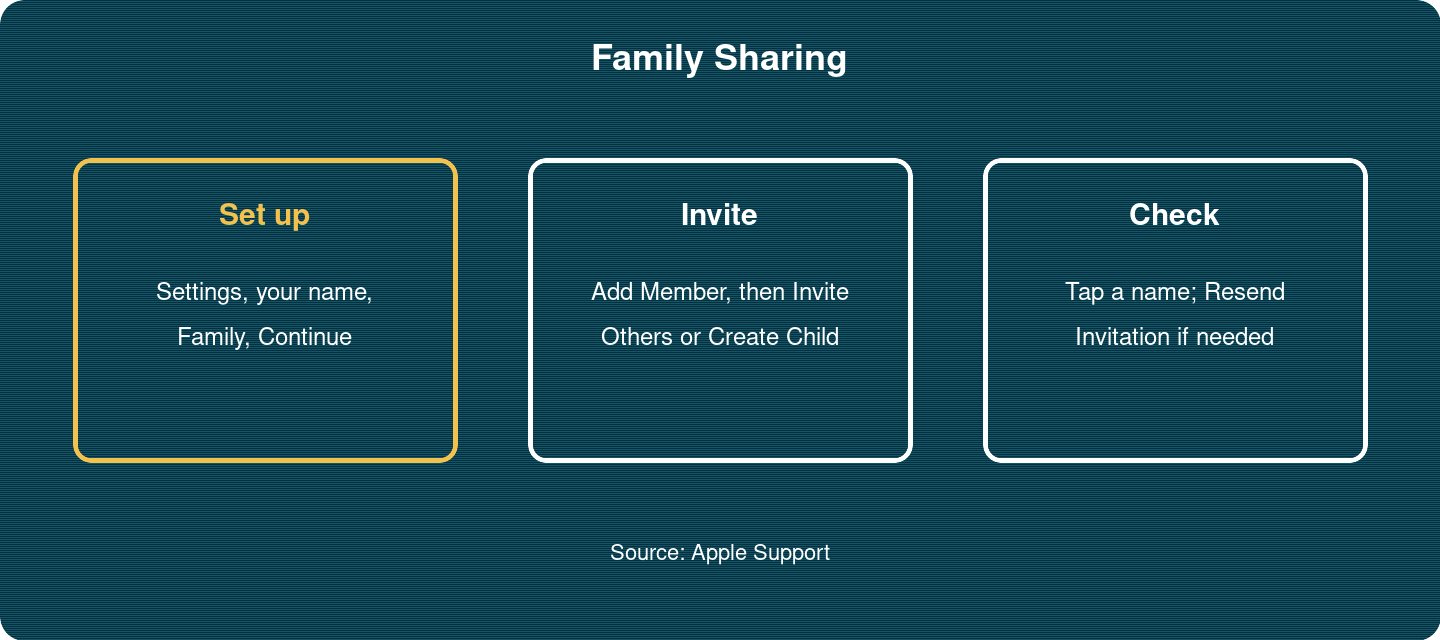
The organizer must be an adult. You might need to confirm that you are an adult.
You can send an invitation by Messages or email. If you have several Apple Accounts, Apple says you can invite each one so you can share purchases from your other accounts.
You will get an invitation by email or text and can answer from it. If you miss it, you can respond from Settings. Apple says you can be in only one Family Sharing group at a time.
You want your partner on your iCloud+ plan without sharing an account. Open Settings, Family, Add Member, Invite Others, and send the invitation by Messages. Afterwards, check the status under their name. For storage that fills up, see iCloud storage full. If someone else's purchases show on your card, request a refund from Apple explains how the organizer can look.