How to Encrypt Your iPhone Backup on a Mac or PC
Turn on Encrypt local backup, see what an encrypted backup adds, and check the lock icon. Based on Apple Support, 21 September 2026.
Turn on Encrypt local backup, see what an encrypted backup adds, and check the lock icon. Based on Apple Support, 21 September 2026.

A backup you make on a computer is not encrypted by default. Turning on encryption protects it with a password and lets it hold more information. This guide covers turning it on and checking it, following Apple Support (updated 21 September 2026).
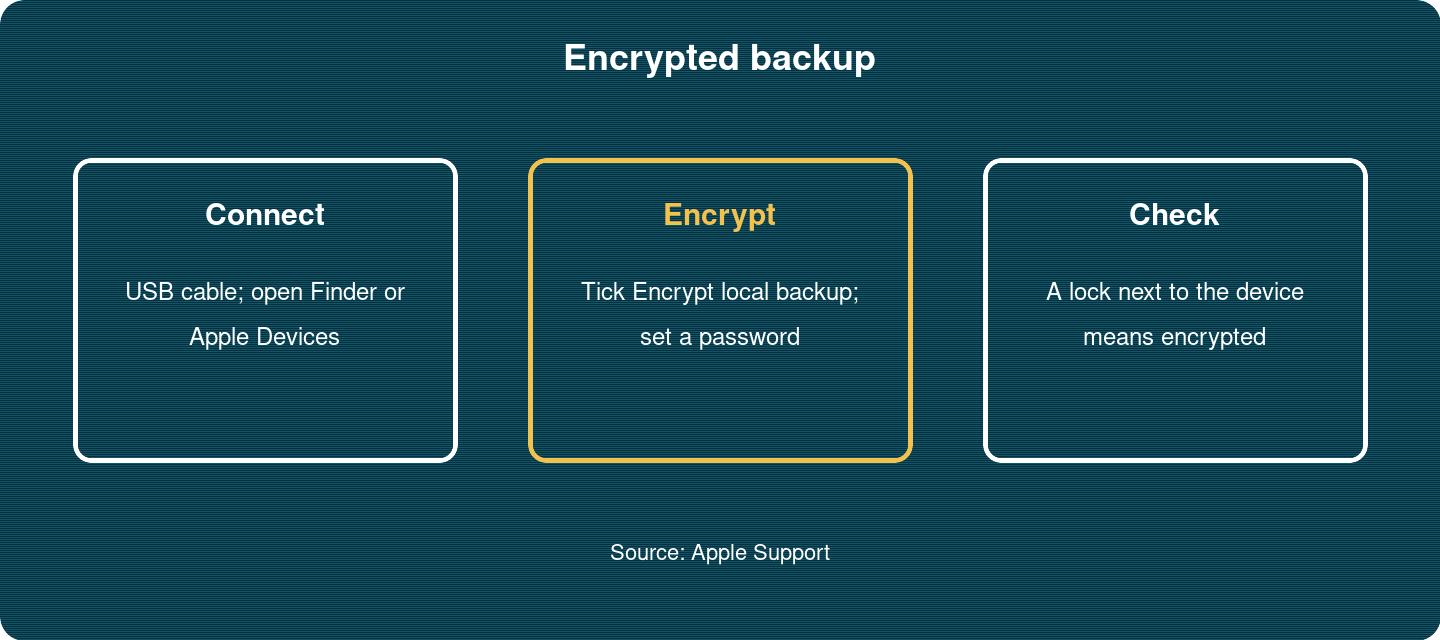
Apple says encrypted backups can include things unencrypted ones do not: saved passwords, Wi-Fi settings, website history, Health data and call history. They do not include Face ID, Touch ID or passcode data. A backup made in iCloud is encrypted too.
Apple says the backup then starts and immediately overwrites and encrypts your previous backups, and backups stay encrypted from then on. Check that it finished successfully.
You want your saved Wi-Fi networks and Health data to come across to a new phone. Turn on Encrypt local backup, set a password you will not lose, and let the backup finish. Write the password in a password manager: strong passwords and password managers. For the iCloud route, see back up your iPhone and move to a new one.
This guide does not cover turning encryption off or resetting its password. Use the source page for those.