How to Find, Open, Switch and Close Apps on Android
Swipe gestures for opening, switching and closing apps, and why Google says you do not need to close them. Based on Android Help.
Swipe gestures for opening, switching and closing apps, and why Google says you do not need to close them. Based on Android Help.
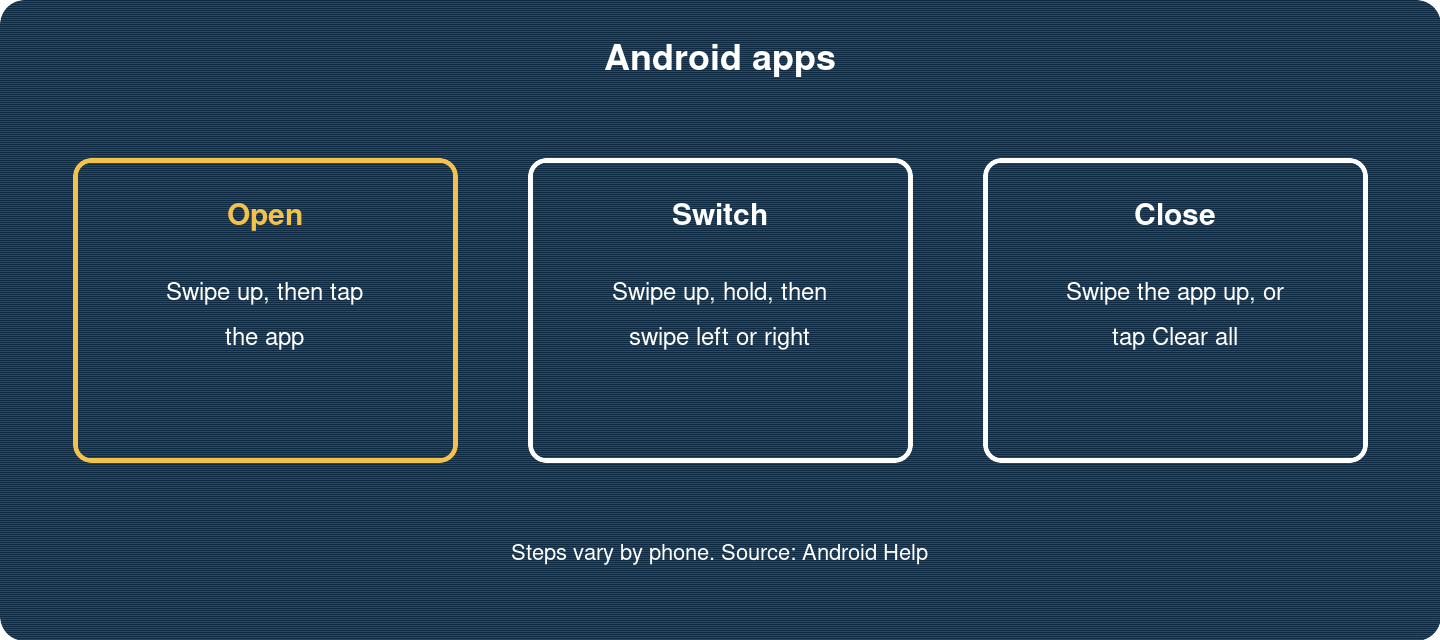
Finding an app, switching between apps and closing one all use swipes from the bottom of an Android screen. This guide follows Android Help. Steps can vary slightly by phone.
Google adds that if you use a Google Account for work or school, your apps are in a Work tab. You can also touch and hold an app to see its shortcuts and choose one.
Google says some apps, such as Google Play services and system apps, cannot be stopped. To go back to your Home screen, tap Home.
Google says that even if you do not close apps, you will not run out of memory or battery, because Android manages these automatically.
Use the Play Store app to download more.
A game freezes. Swipe up from the bottom, hold, let go, and swipe the game up to close it. Reopen it from All Apps. Closing apps all day will not save battery, per Google, so look elsewhere for drain: Android battery life tips. To place apps on your Home screens, see Android Home screen apps, shortcuts and widgets.