Forget a Wi-Fi Network or Turn Off Auto-Join: Which One to Choose
Settings, Wi-Fi, Edit, More Info next to the network. Turn off Auto-Join to keep the password, or tap Forget This Network to delete it. Mac steps are in the guide.
Settings, Wi-Fi, Edit, More Info next to the network. Turn off Auto-Join to keep the password, or tap Forget This Network to delete it. Mac steps are in the guide.
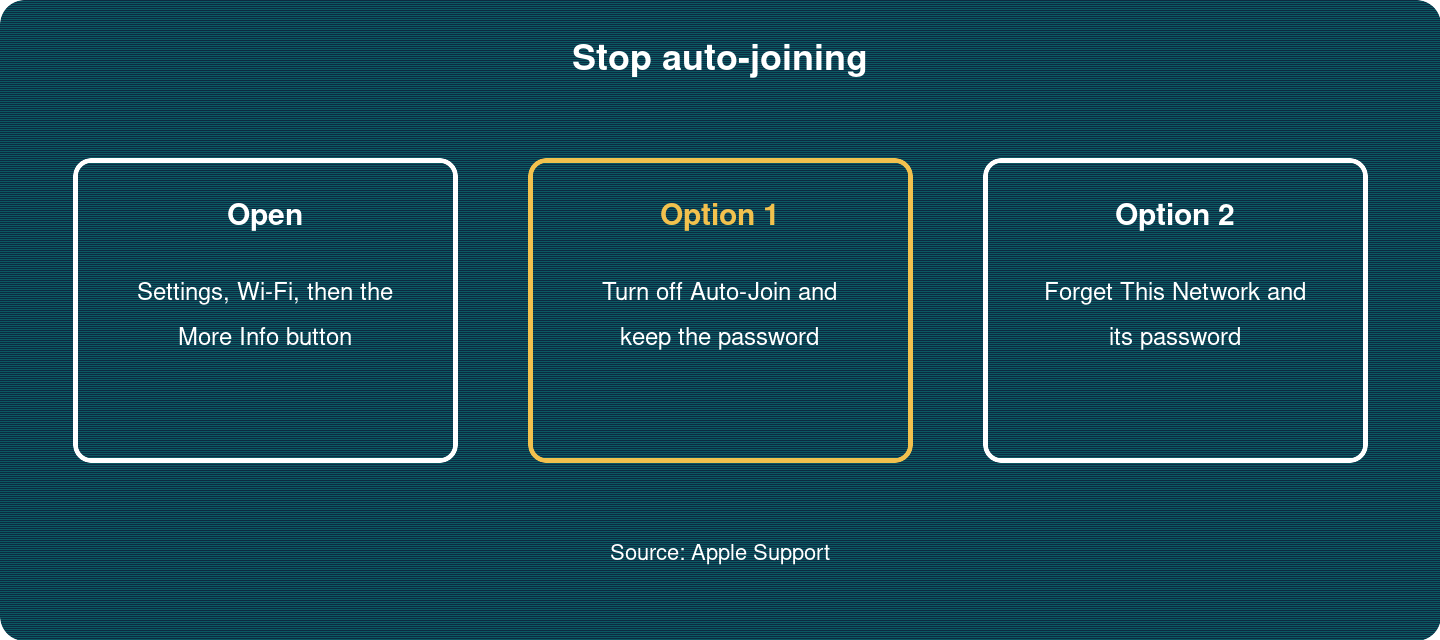
Short answer: to stop your iPhone from rejoining a Wi-Fi network on its own, open Settings, tap Wi-Fi, tap Edit, tap the More Info button next to the network, then either turn off Auto-Join (keeps the password) or tap Forget This Network (deletes it). Apple's steps for iPad, Apple Vision Pro and Mac are below. Source: Apple Support, 17 June 2026.
| You want | Choose | What happens |
|---|---|---|
| Keep the password, but stop automatic joining | Turn off Auto-Join | After you disconnect (Wi-Fi off and on, or out of range) the device no longer rejoins by itself. You can still join manually each time. |
| Remove the network and its password | Forget This Network (iPhone, iPad, Vision Pro) or Remove From List (Mac) | The device no longer joins automatically unless you manually join the network again. |
Apple says some supervised devices and managed networks do not offer them. Apple's page gives no other fix for that case.
If a network will not connect at all, see iPhone cannot connect to Wi-Fi. To give someone a password, see share a Wi-Fi password from iPhone.