How to Use AirDrop on iPhone and iPad (Contacts and Non-Contacts)
Send photos and files to a nearby Apple device, including to someone not in your contacts. Based on Apple Support, 5 October 2026.
Send photos and files to a nearby Apple device, including to someone not in your contacts. Based on Apple Support, 5 October 2026.

AirDrop sends photos, documents and more to nearby Apple devices. This guide follows Apple Support (published 5 October 2026) for iPhone and iPad.
Everyone for 10 Minutes changes back after 10 minutes. If you are signed in to your Apple Account it reverts to Contacts Only. If you are not signed in, it reverts to Receiving Off. If a child receives or tries to send certain sensitive content through AirDrop, Communication Safety can warn them, blur the content and offer resources.
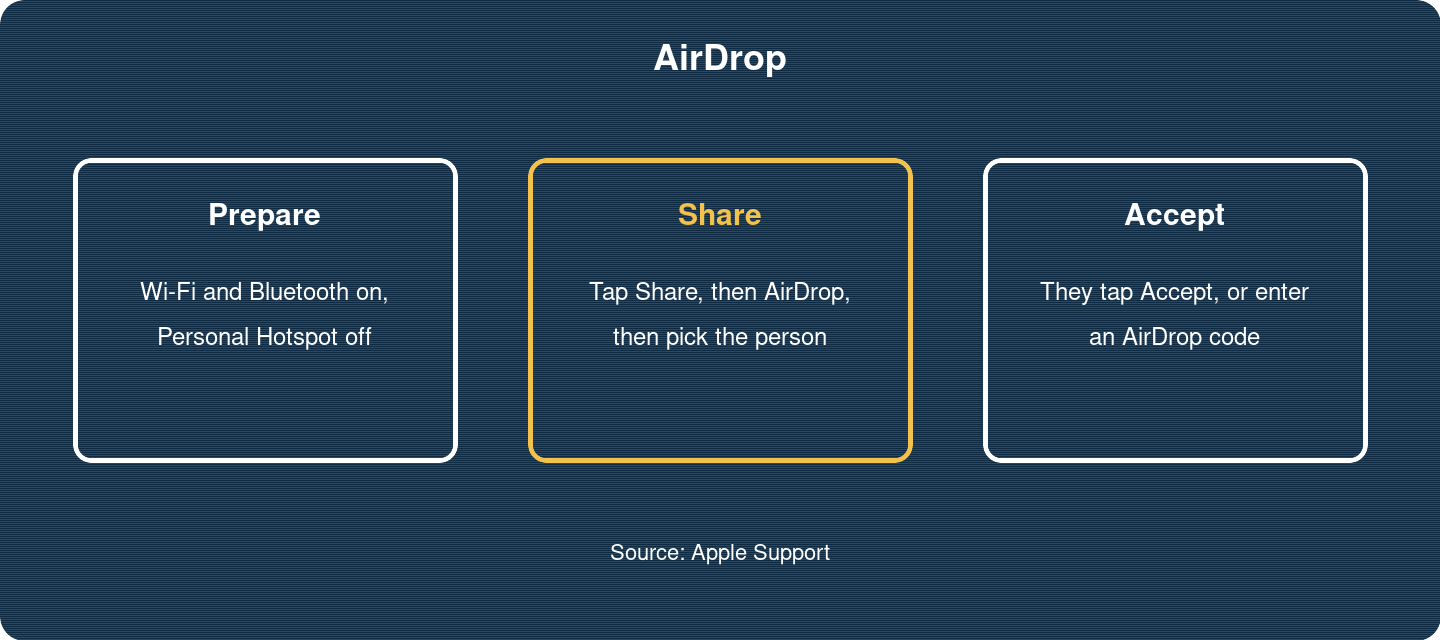
You want to send holiday photos to a friend who is not in your contacts. Ask them to switch AirDrop to Everyone for 10 Minutes, select the photos, tap Share, then AirDrop, and pick them. If AirDrop will not show anyone, check that Wi-Fi and Bluetooth are on and Personal Hotspot is off. See also iPhone Personal Hotspot for how hotspot works.