iPhone Personal Hotspot: Set Up and Connect by Wi-Fi, USB or Bluetooth
Turning on Allow Others to Join, setting the password, connecting a Mac or another device, and disconnecting. Based on Apple Support, 7 May 2026.
Turning on Allow Others to Join, setting the password, connecting a Mac or another device, and disconnecting. Based on Apple Support, 7 May 2026.
Personal Hotspot turns your iPhone's mobile data into a temporary Wi-Fi network for other devices. Apple's support page (7 May 2026) explains connecting by Wi-Fi, USB or Bluetooth. This guide covers the Wi-Fi method in full and the others briefly.
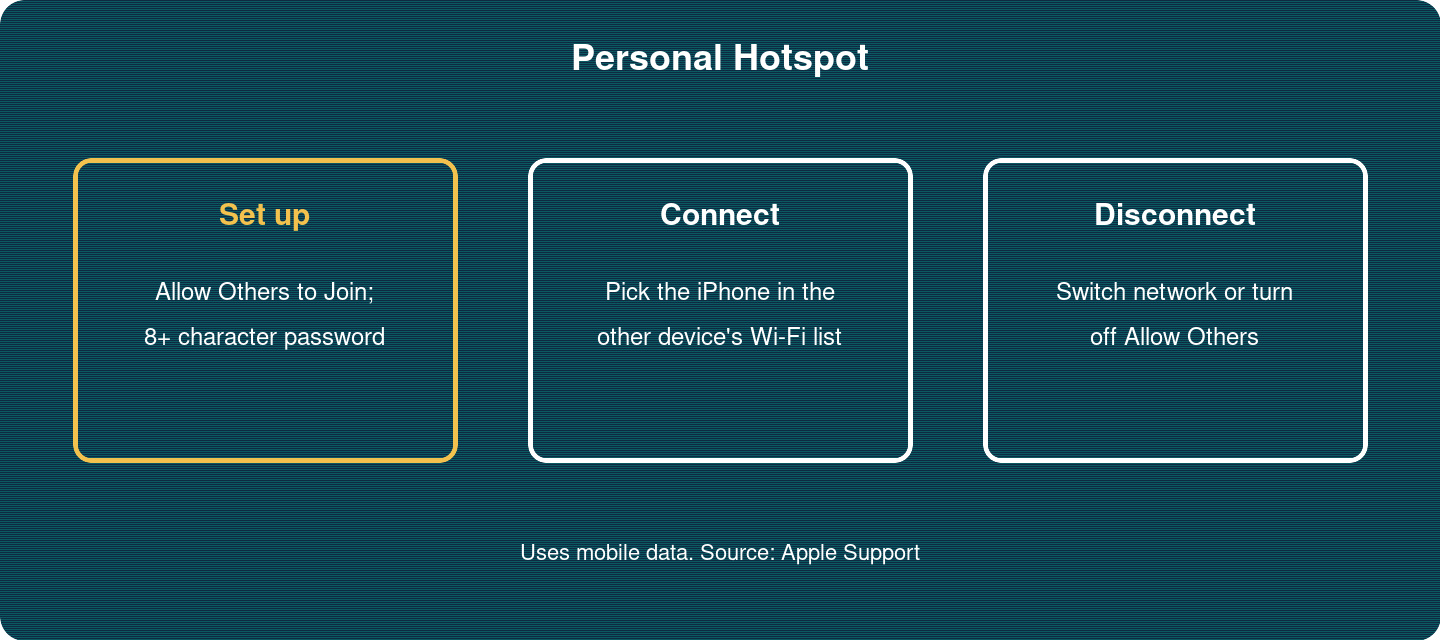
Enter the password shown in the hotspot settings. Devices signed in to the same Apple Account, or in the same Family Sharing group, can use Instant Hotspot to connect faster.
Connect the device to a different network, or turn off Allow Others to Join on the iPhone.
For USB, turn on Allow Others to Join, connect with a cable, and on a Windows PC make sure the latest Apple Devices app or iTunes is installed. If asked to allow the accessory, click Allow. The Apple page also covers Bluetooth and a section for when the hotspot is not working: Connect to the Personal Hotspot of an iPhone or iPad.
You are on a train with a laptop and no Wi-Fi. Turn on Allow Others to Join, pick the iPhone from the laptop's Wi-Fi list, enter the password and keep the hotspot screen open. Hotspot uses your mobile data, so check your plan first (my note). It is also safer than an open public network: see is public Wi-Fi safe. For Android see Android hotspot and tethering.