iPhone App Library: Find Apps and Tidy Your Home Screen
Search the App Library, move apps on and off the Home Screen, delete apps, and hide pages. Based on Apple Support, 27 May 2026.
Search the App Library, move apps on and off the Home Screen, delete apps, and hide pages. Based on Apple Support, 27 May 2026.

The App Library lists every app on your iPhone in automatic categories, so you can keep a tidy Home Screen and still find anything. This guide follows Apple Support (updated 27 May 2026) for iOS 14 and later.
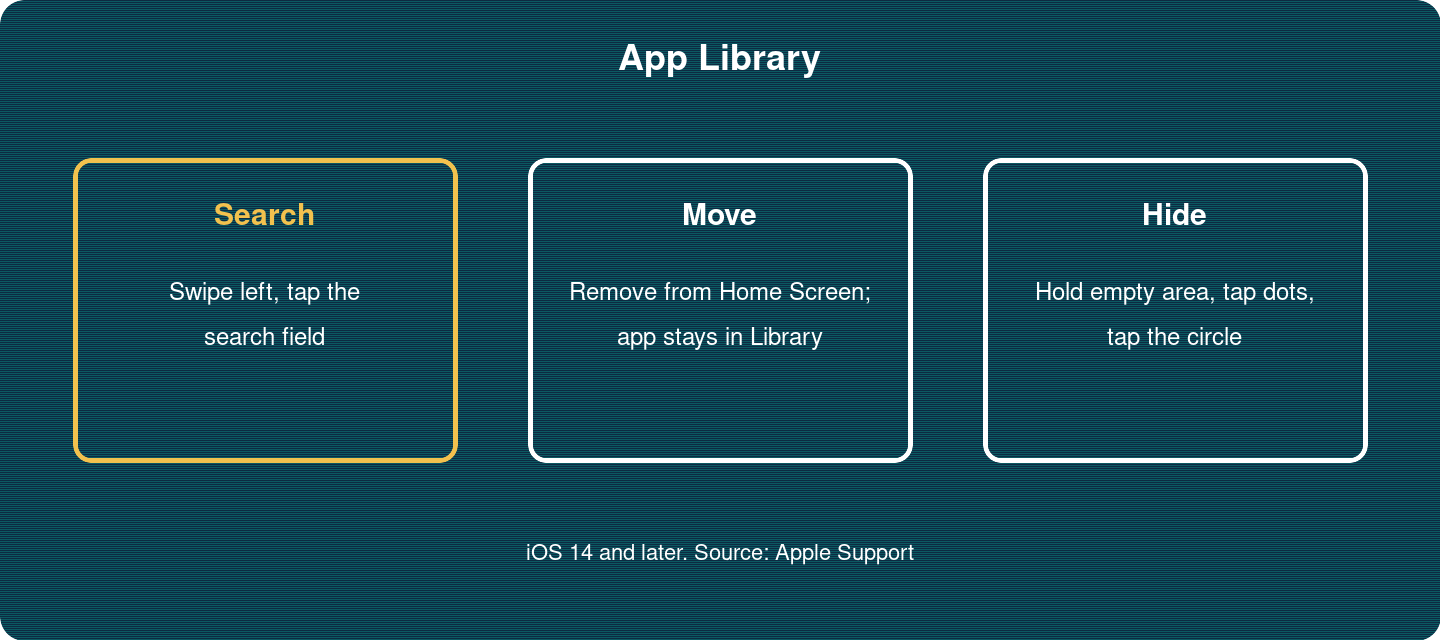
Apple says apps are sorted into categories such as Social, and the ones you use most are reordered automatically.
In the App Library, tap the search field to open the list, touch and hold the icon, tap Delete App, then tap Delete again. Apple says that if you cannot delete a non-Apple app, turn off parental controls and try again.
Hidden pages can be brought back with the same steps.
You have five Home Screen pages and use two. Hide the other three. The apps are still in the App Library, so a quick search finds them. If a page vanishes after you remove it, check the App Library before assuming the app is deleted. If your phone is also short on space, see iPhone storage full.