iPhone Storage Full? How to See What Is Using Space and What to Do
How to read iPhone Storage, what each category means, and when to offload an app instead of deleting it. Based on Apple Support.
How to read iPhone Storage, what each category means, and when to offload an app instead of deleting it. Based on Apple Support.

"Storage Almost Full" usually has a short list of causes. Apple's support page explains how to see what is using the space and which built-in recommendations free it up. This guide follows that page (dated 13 October 2026 on Apple's site) and applies to iPhone and iPad.
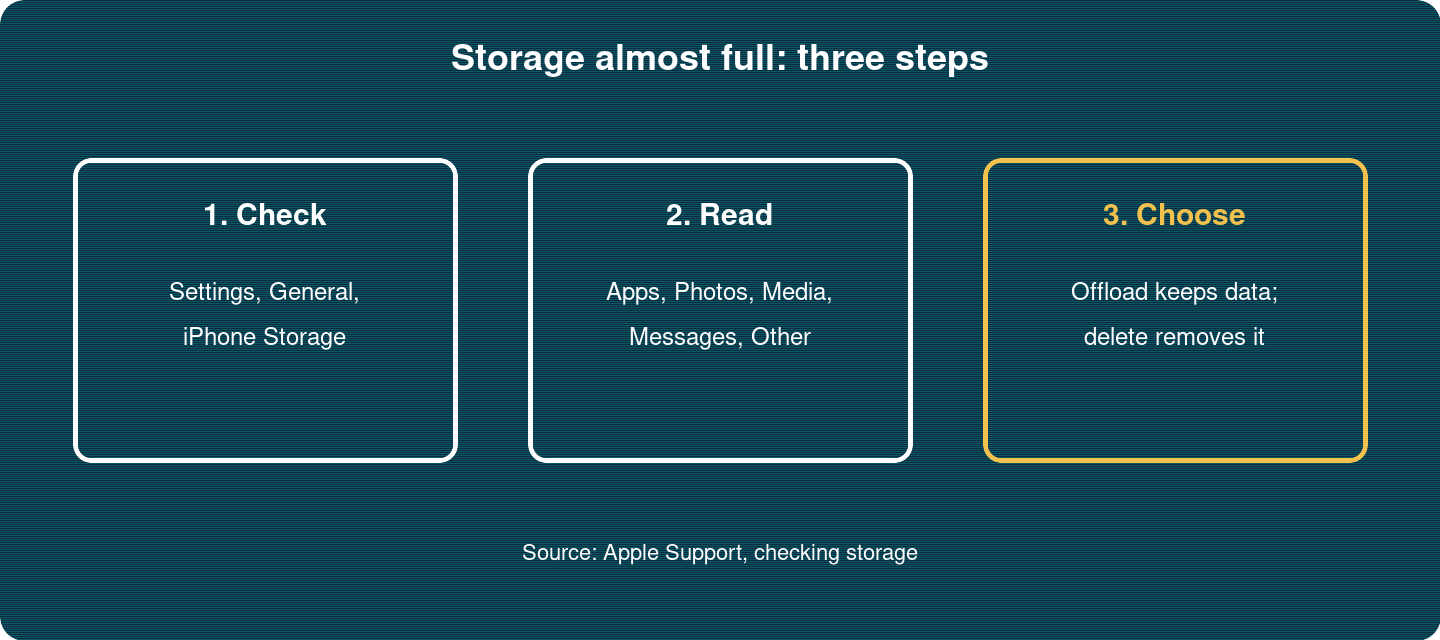
Apple notes that cached and temporary data might not count as usage in this view.
For each large app, Apple gives two choices, and they are not the same:
If a recommendation appears under Storage, tap Show All, read the description of each, then tap Enable to turn it on or tap it to review what you could delete. Apple suggests removing content such as videos and apps if the alert persists.
Suppose iPhone Storage shows a video app at the top. Offloading it frees the app's own space and keeps what you saved in it, so it is the safer first step. Deleting it frees more only if you do not need that saved data. If Photos is the largest bar, look at the recommendation there rather than deleting apps.
Apple says the device removes cached and temporary files itself when it needs room, and you cannot delete them by hand on the device. A computer shows cached music, videos and photos as "Other", which is why numbers in the Finder can differ from those in Settings. Apple says to rely on the Settings view for usage.
If your phone is dying before it is full, see charging an iPhone overnight. To protect what you keep, see back up your data.