Android Hotspot and Tethering: Wi-Fi, Bluetooth and USB
Turn on the hotspot, connect another device, tether by Bluetooth or USB, and check your carrier first. Based on Android Help.
Turn on the hotspot, connect another device, tether by Bluetooth or USB, and check your carrier first. Based on Android Help.
You can use your Android phone's mobile data to get another phone, tablet or computer online. Google calls this tethering or using a hotspot. This guide follows Google's Android Help page; some steps work only on Android 14 and up.
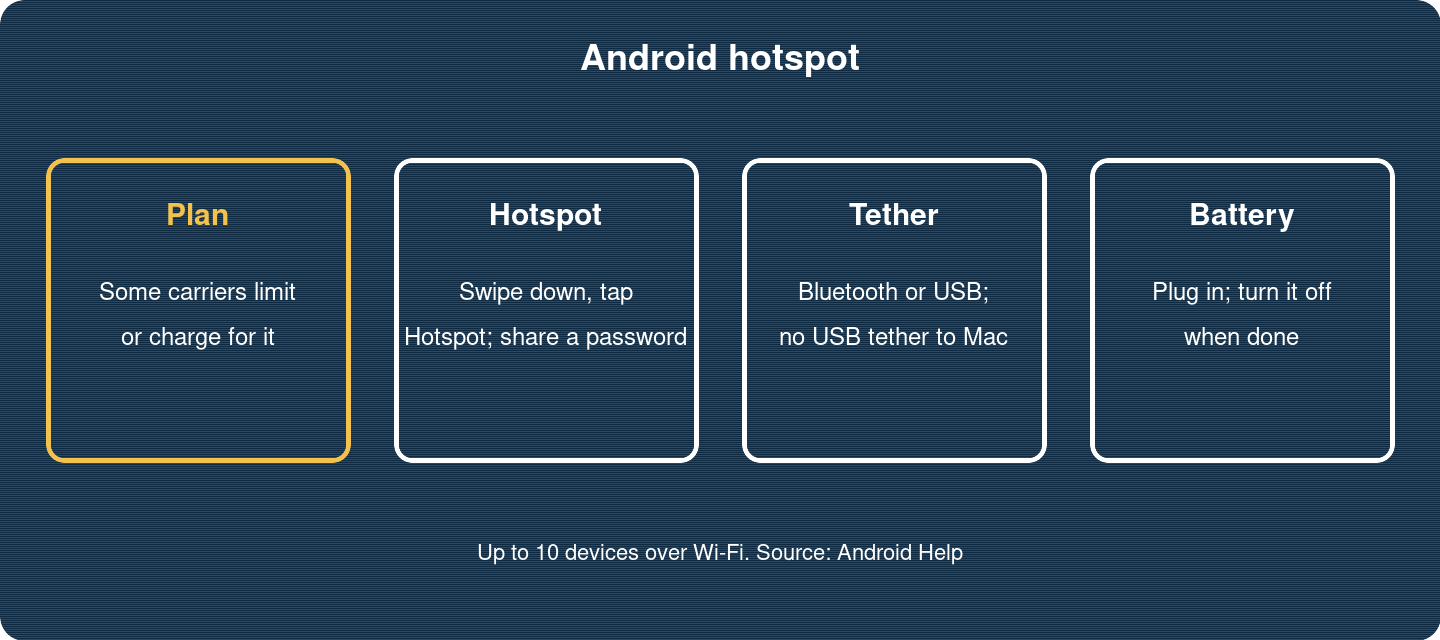
Google says some mobile carriers limit or charge extra for tethering, and recommends checking with your carrier.
Google says you can share your data with up to 10 other devices over a Wi-Fi hotspot. You can remove the password requirement by touching and holding Hotspot and setting Security to None, but that lets anyone nearby join, so I would not do it.
Plug in your devices while tethering, turn tethering off when done, and if your phone can switch the hotspot off when no devices are connected, turn that setting on.
At a cafe you would rather not use the public Wi-Fi. Turn on Hotspot, keep the default password, connect the laptop, and turn it off afterwards. Watch your data allowance. See is public Wi-Fi safe and connect to and share Wi-Fi on Android. On iPhone: iPhone Personal Hotspot.