How to Manage Notifications on iPhone: Mute, Clear, Change How They Look
Use the Lock Screen and Notification Center, mute or turn off one app, and change appearance and sounds. Based on Apple Support, 14 September 2026.
Use the Lock Screen and Notification Center, mute or turn off one app, and change appearance and sounds. Based on Apple Support, 14 September 2026.
Notifications can be useful or noisy. This guide follows Apple Support (published 14 September 2026) and covers where to see them, how to quiet one app, and how to change how they look and sound on iPhone and iPad.
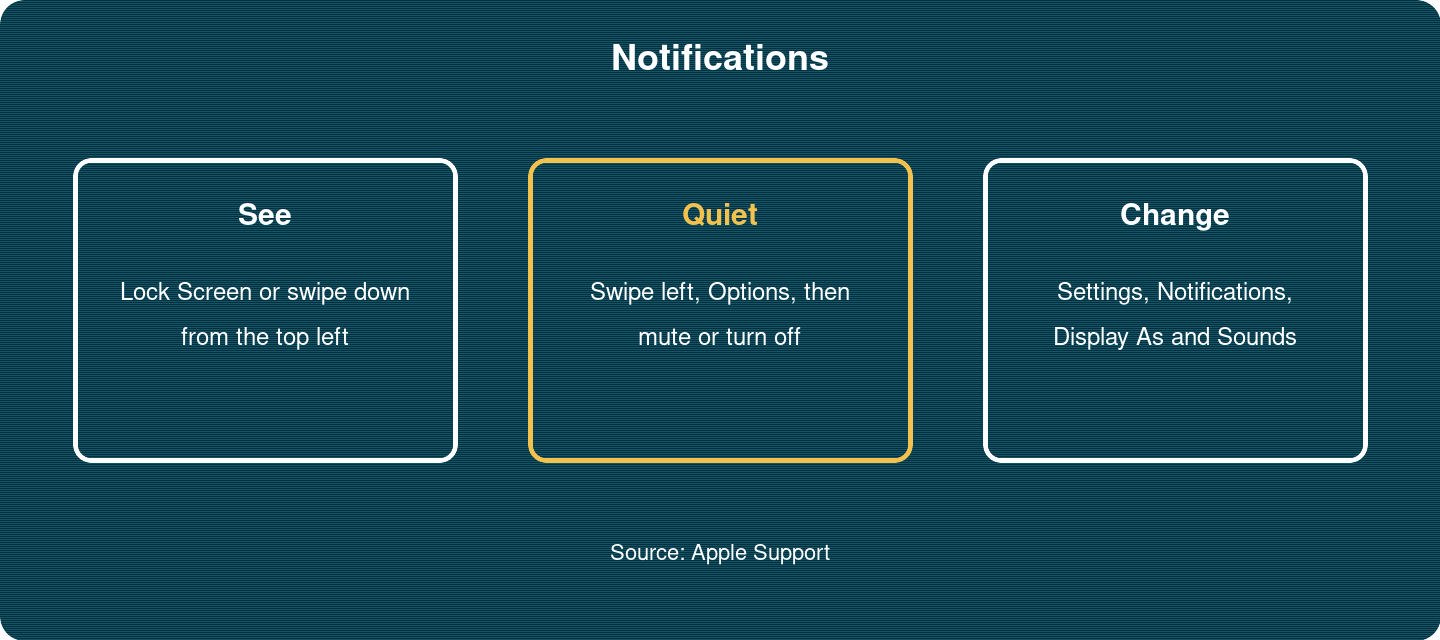
Pick up your iPhone or wake your iPad. From the Lock Screen you can:
To show the contents of notifications without unlocking, go to Settings, tap Notifications, tap Show Previews and choose Always. In iOS 17 and later you can also see them while the iPhone is in StandBy.
Notification Center keeps a history so you can scroll back to what you missed. From the Lock Screen swipe up from the middle of the screen. From any other screen swipe down from the top left. To clear the history, tap the Close button, then Clear.
View Settings lets you change alert styles or settings for that app.
You need iOS 16 or later. Go to Settings, tap Notifications, and under Display As choose:
If the phone is silenced or the volume is all the way down, notification sounds will not play.
A shopping app buzzes you all day. Swipe left on one of its alerts, tap Options and choose Mute for Today to test the quiet, or Turn Off to stop it for good. If you miss important alerts instead, check that no Do Not Disturb setting is on.
Apple's page also links to guides on notification summaries, grouping and location-based alerts, which this guide does not cover.