Manage Passwords in Chrome: Save, Generate and Turn Off
Where Chrome saves passwords, how to add or generate one, and how to turn saving on or off. Based on Google Chrome Help.
Where Chrome saves passwords, how to add or generate one, and how to turn saving on or off. Based on Google Chrome Help.
Chrome has a built-in password manager, Google Password Manager. Google's Chrome Help page explains where passwords are saved and how to manage them on a computer. This guide follows that page.
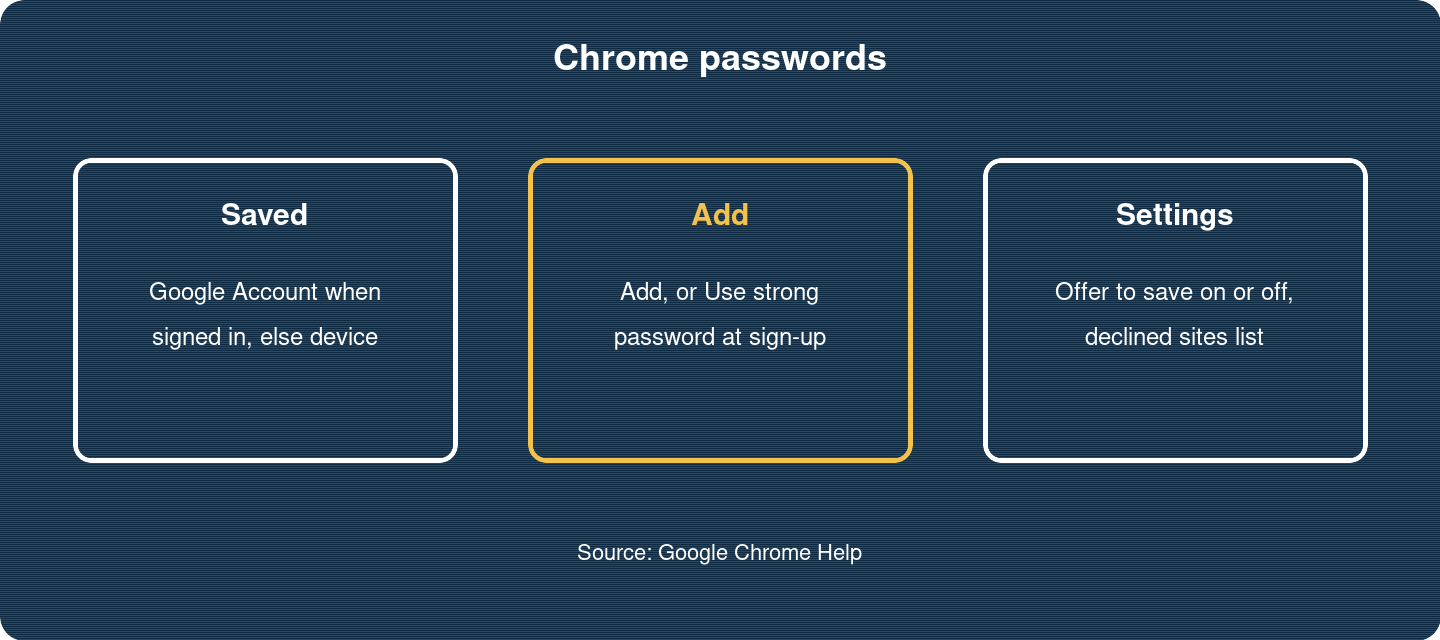
By default Chrome offers to save passwords. In Google Password Manager, open Settings and switch Offer to save passwords and passkeys on or off. Sites where you chose not to save are listed under Declined sites and apps, where you can remove them.
You reuse one password on a shop and a forum. Sign in to Chrome, open the forum's sign-up or change-password page, and let Chrome suggest a strong password. It saves it, and you are no longer reusing it. Repeat for your email and bank first, because those matter most. On a shared computer, do not save passwords to your Google Account: that is my suggestion, and Google's page notes that saving to the device is for people who do not want to share across devices. For why unique passwords matter, see strong passwords and password managers, then add two-step sign-in. A newer option is Google passkeys.