Report and Reduce Spam in iCloud Mail
Mark junk, rescue real email from the Junk folder, and cut future spam in iCloud Mail. Based on Apple Support, 3 September 2026.
Mark junk, rescue real email from the Junk folder, and cut future spam in iCloud Mail. Based on Apple Support, 3 September 2026.
If junk keeps reaching your iCloud inbox, or a real email lands in Junk, you can train the filter. This guide follows Apple Support (published 3 September 2026).
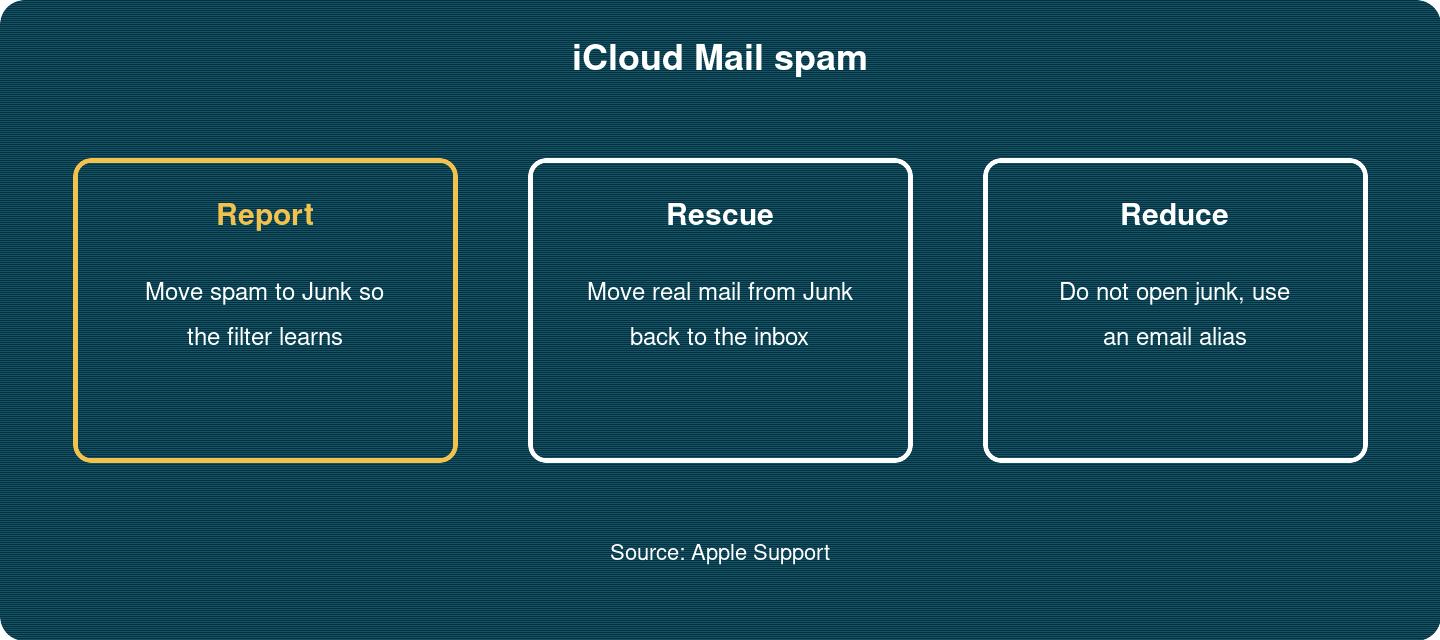
Reporting a message as junk helps Mail mark future messages from the same sender as junk. It also improves iCloud Mail filtering.
Filtering can block a legitimate message. Mark it as not junk and future messages from that sender go to your inbox.
Apple notes that email from people in your iCloud contacts, or from recent conversations, will not go to Junk. Messages in the Junk folder delete automatically after 30 days. If several messages are delayed, bounced or not delivered, Apple says to contact iCloud Support.
Apple's three suggestions: do not open suspected junk mail, turn on Protect Mail Activity, and use an email alias. Our guide on Hide My Email explains one way to use an alias.
Spam can also be a scam. See warning signs of fake Apple messages before you click anything. For text message spam, see spam texts on iPhone.