How to Unsend a Gmail Message, and When to Use Cc or Bcc
Click Undo after sending, lengthen the Undo Send window to 30 seconds, and see what Cc and Bcc each reveal. Based on Gmail Help.
Click Undo after sending, lengthen the Undo Send window to 30 seconds, and see what Cc and Bcc each reveal. Based on Gmail Help.
Gmail lets you pull back a message for a few seconds after you press Send, and you can choose how long that window lasts. This guide follows Gmail Help (computer version) and also explains Cc and Bcc.
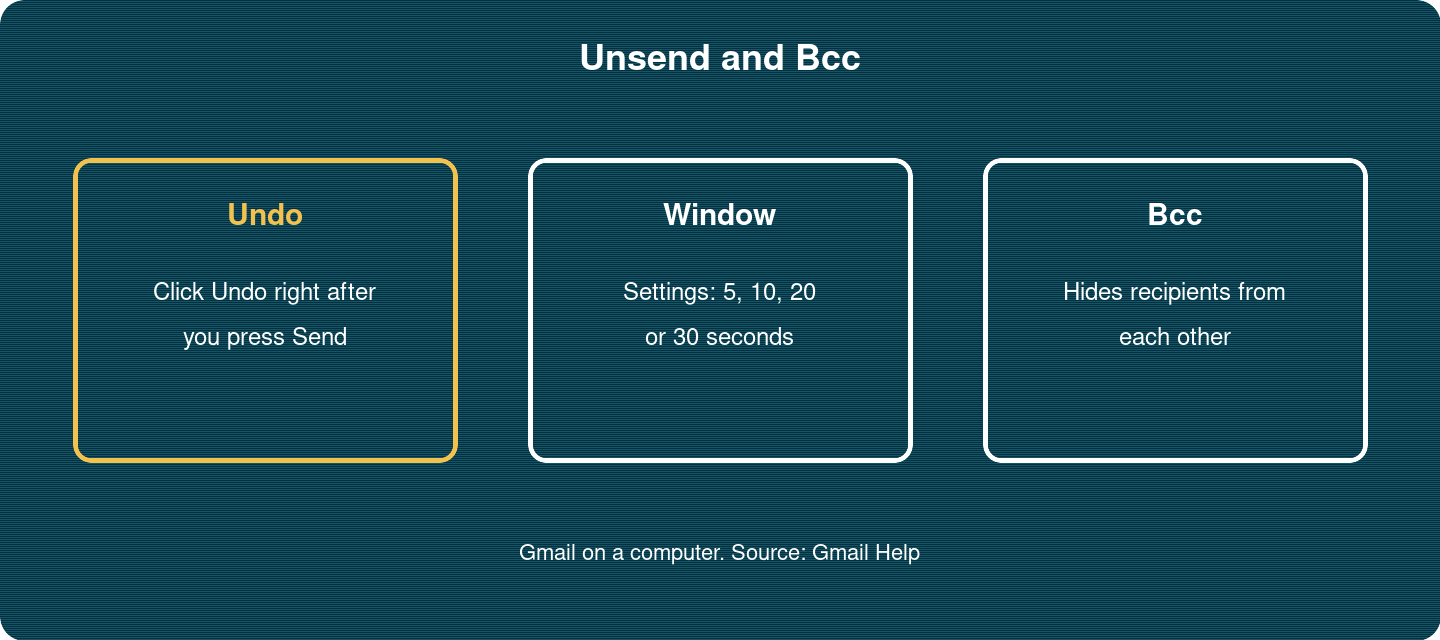
Google says you only have a short time. After the window closes, the message is sent.
Google adds that if your recipients do not use Gmail, they may not see that they were added to Bcc.
Put a comma between each name or address. You can also create a group of contacts and use the group address in To, Cc or Bcc.
You send a note to a landlord and realise the attachment is missing. If you set Undo Send to 30 seconds, you have time to click Undo, attach the file and send again. For a newsletter to a club, put members in Bcc so they do not see each other's addresses. If a message looks like a scam, see avoid and report phishing emails in Gmail.