How to Update Chrome and Check Your Version
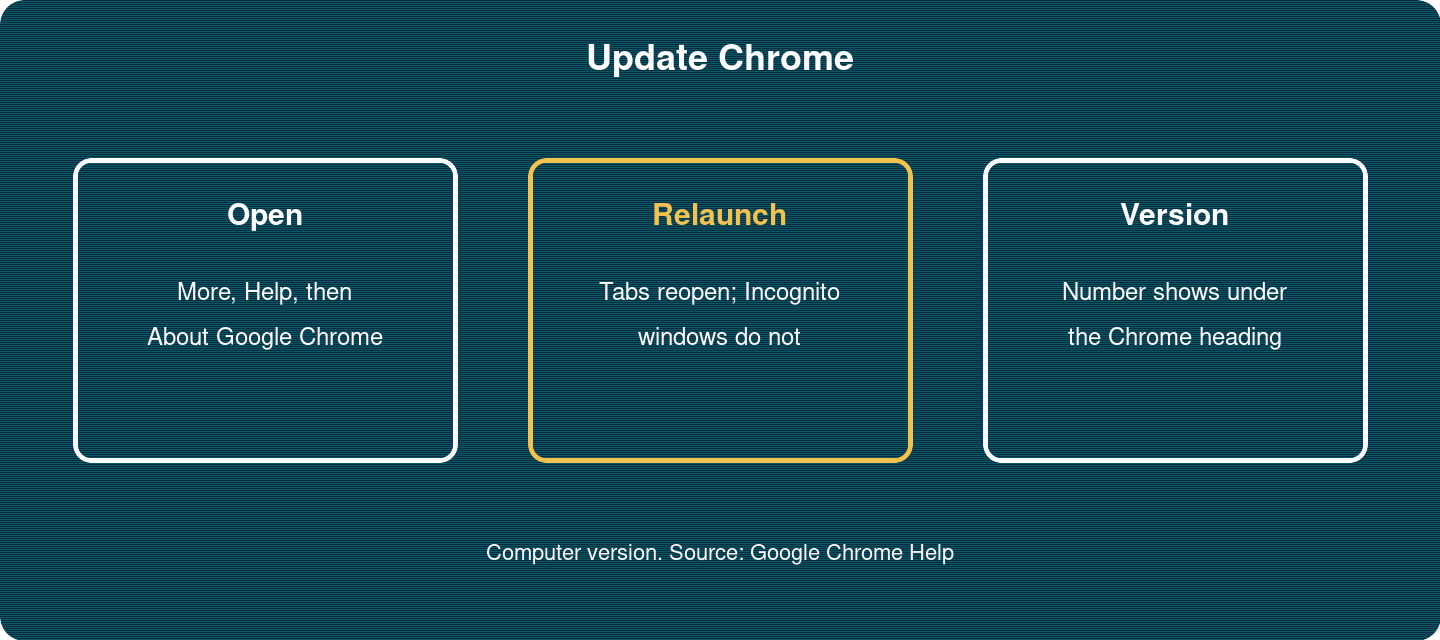
Open Chrome, then More, Help, About Google Chrome. The version number is shown there, and a Relaunch button means an update is waiting. No Relaunch button means you are on the latest version.
Open Chrome, then More, Help, About Google Chrome. The version number is shown there, and a Relaunch button means an update is waiting. No Relaunch button means you are on the latest version.
Short answer: open Chrome, select More at the top right, then Help, then About Google Chrome. The version number is under the "Google Chrome" heading, and Chrome checks for updates while that page is open. If a Relaunch button shows, select it to finish the update. If there is no Relaunch button, you are on the latest version. Source: Google Chrome Help (the page shows no date).
| You see | What it means | What to do |
|---|---|---|
| A Relaunch button on the About page | An update is pending | Select Relaunch. Chrome reopens your tabs and windows. Incognito windows do not reopen. |
| No Relaunch button | Google says you are on the latest version | Nothing to do |
| You want to finish later | The update waits | Select Not now. It applies the next time you restart Chrome. |
| System | What Google says |
|---|---|
| Windows | Close all Chrome windows and tabs on the desktop, then relaunch Chrome to apply the update. |
| Mac | If Chrome is in your Applications folder, you can set up automatic updates for all users. On About Google Chrome, click Automatically update Chrome for all users. |
| Linux | Update Chrome with your package manager. |
| Chromebook | Update the Chromebook's operating system. |
Google says Chrome can update itself when a new version is available, usually in the background when you close and reopen the browser. A pending update is most likely if you have not closed the browser in a while. Google's stated reason for updating is to get the latest security updates.
Google also says to check that Chrome supports your operating system and that you meet the system requirements before updating. Open Google's page below for the current list. We did not copy it here, because it changes. For problems after updating, such as pages that load wrong, try clearing cache and cookies in Chrome. For why updates matter beyond the browser, see why install software updates.