How to Update macOS on Your Mac With Software Update
Open Software Update, install safely, and what it means when it says your Mac is up to date. Based on Apple Support, 14 September 2026.
Open Software Update, install safely, and what it means when it says your Mac is up to date. Based on Apple Support, 14 September 2026.
Apple recommends running the latest macOS your Mac supports for security, stability and compatibility. This guide follows Apple Support (updated 14 September 2026).
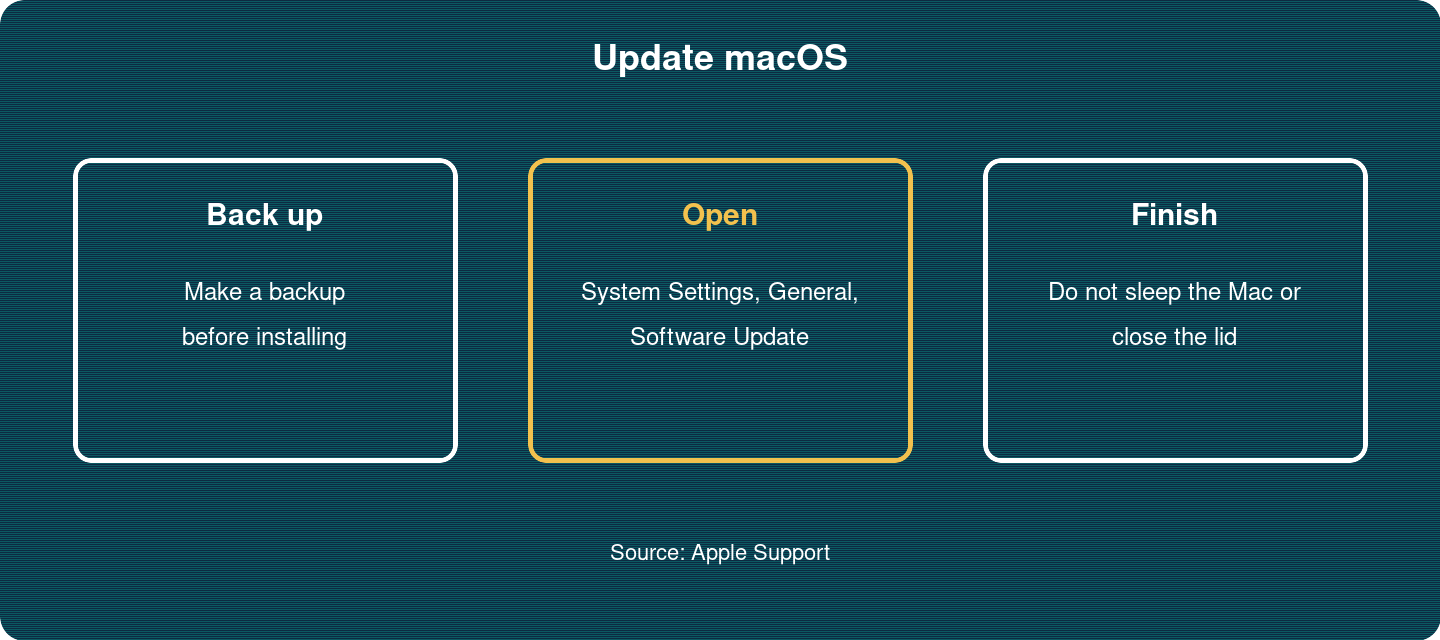
Apple says it is a good idea to back up your Mac first.
If it says your Mac is up to date, you can check again by clicking Check for Updates, pressing Command-R, or closing and reopening Software Update.
Software Update only shows software compatible with your Mac model. If your Mac does not need or cannot run an update, it says the Mac is up to date. Apple's page lists the recent major releases with a compatibility page for each, from macOS Catalina 10.15 up to macOS 27 Golden Gate.
A minor update is a new release of your current macOS, such as 26 to 26.4. A major one is a new version, such as 26 to 27. Software Update settings control whether your Mac downloads or installs these automatically.
An app says it needs a newer macOS. Back up the Mac, open Software Update and install what it offers. If it offers nothing, check Apple's compatibility page for your model, because it may not support the newer release. See also why install software updates.