How to Change or Reset Your Google Account Password
Change your password from Security settings, reset a forgotten one, and see what gets signed out afterwards. Based on Google Account Help.
Change your password from Security settings, reset a forgotten one, and see what gets signed out afterwards. Based on Google Account Help.
You can change your Google Account password for safety, or reset it if you forget it. The same password opens many Google products, such as Gmail and YouTube. This guide follows Google Account Help (computer version).
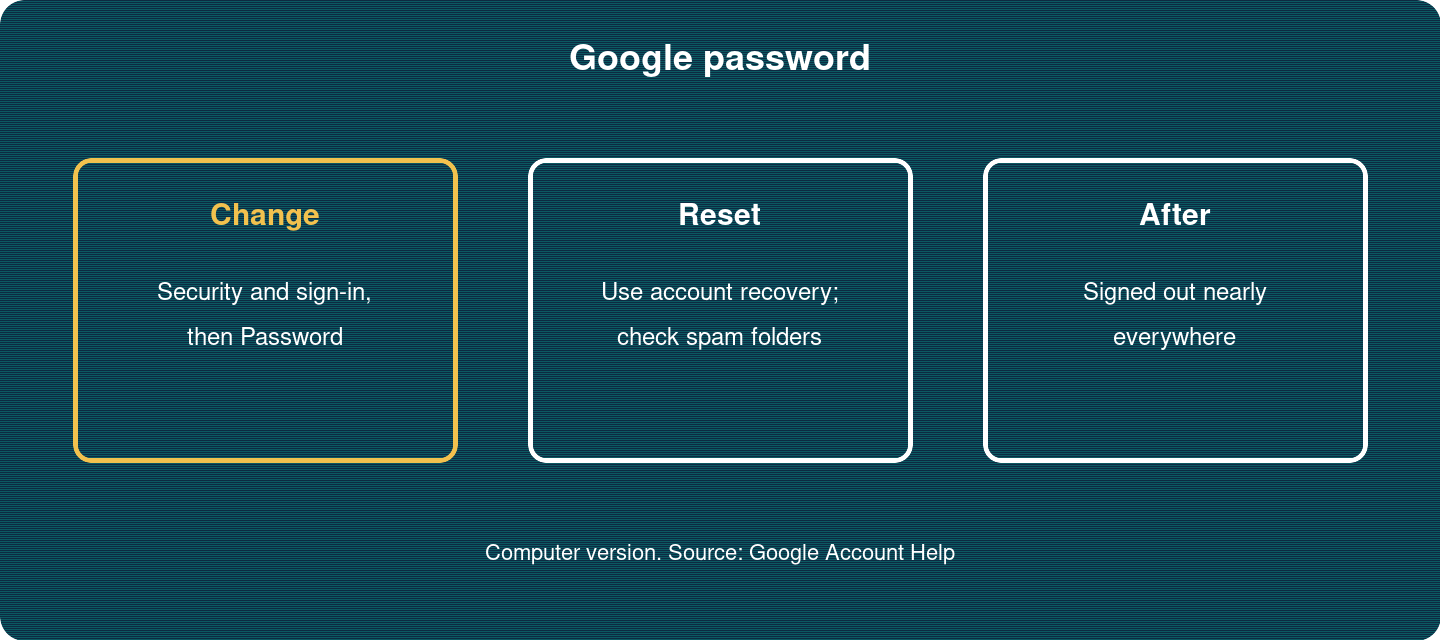
Follow the account recovery steps. Google asks questions to confirm it is you and sends an email. If it does not arrive:
Choose a password you have not used with this account before.
Google says you will be signed out everywhere except devices you use to verify it is you, some devices with third-party apps you gave access, and home devices you gave access. Google links to steps to remove an app's access or unlink those devices.
You see a sign-in alert from a city you have never visited. Change the password at once, then check which devices have access, and turn on two-step sign-in. If you cannot sign in at all, use recover your Google account. For choosing a password, see strong passwords and password managers.
Google adds that Google Fi service is linked to your Google Account, so losing the account could mean losing Fi access. Add recovery info to protect it.