Check and Update Your Android Version, and Fix a Stuck Update
Where to find your Android version and security update date, how to install updates, and what to do when one fails. Based on Android Help.
Where to find your Android version and security update date, how to install updates, and what to do when one fails. Based on Android Help.

Android updates carry security patches, so it helps to know what version you have and how to update. Google's Android Help page explains both. Wording and menus vary a little by maker.
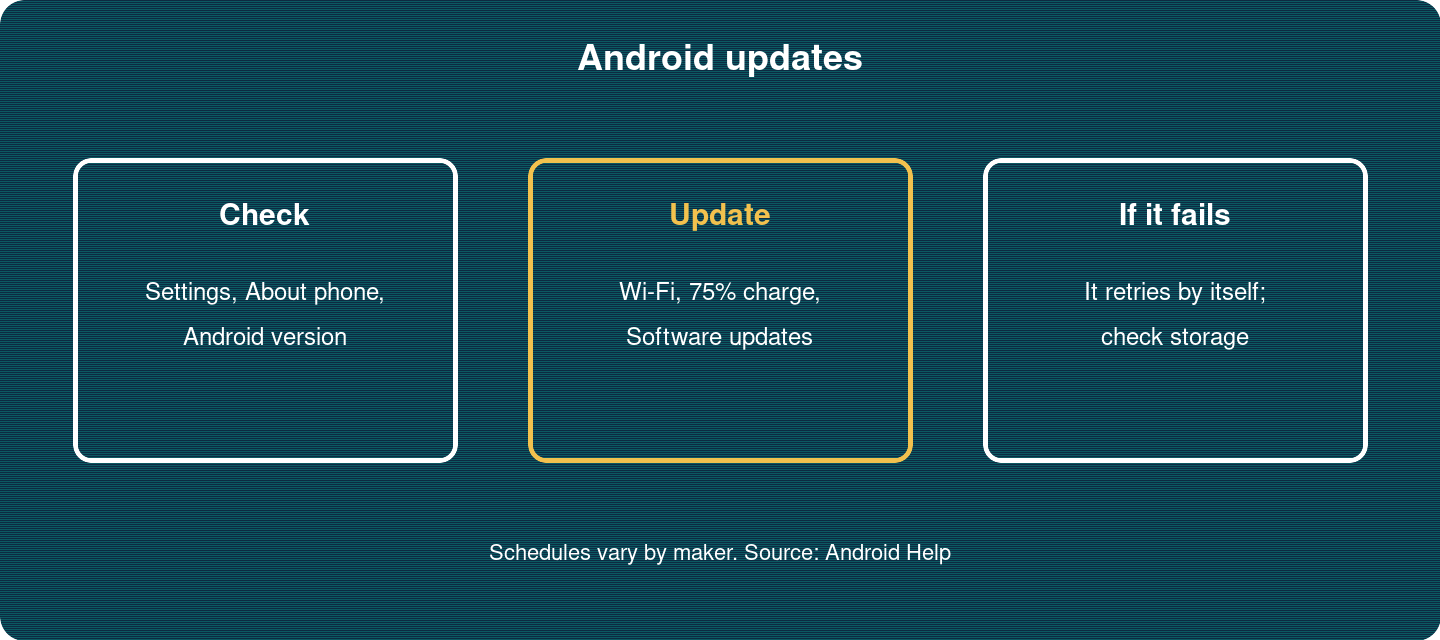
Updates can be large and take time. Google suggests you connect to Wi-Fi and charge the device to at least 75%.
Pixel phones install downloaded updates in the background, and they become active the next time you restart. Many other Android phones restart automatically while they install. Update schedules vary by device, maker and carrier. For a Pixel, Google has a page on when you will get updates. For other devices, contact the manufacturer or carrier.
You see "Android security update" dated many months ago. Connect to Wi-Fi, plug in the phone, open Software updates and install. If none is offered, your maker or carrier may not have released one for your model, so ask them. Updates also matter for safety: see why install software updates and Google Play Protect.