Google Play Protect: What It Checks and How to Make Sure It Is On
What Android's built-in app scanner does, how to check it is on, and what to do when it flags an app. Based on Android Help.
What Android's built-in app scanner does, how to check it is on, and what to do when it flags an app. Based on Android Help.
Google Play Protect is Android's built-in app safety check. Google's Android Help page describes what it does and how to turn it on or off. This guide follows that page.
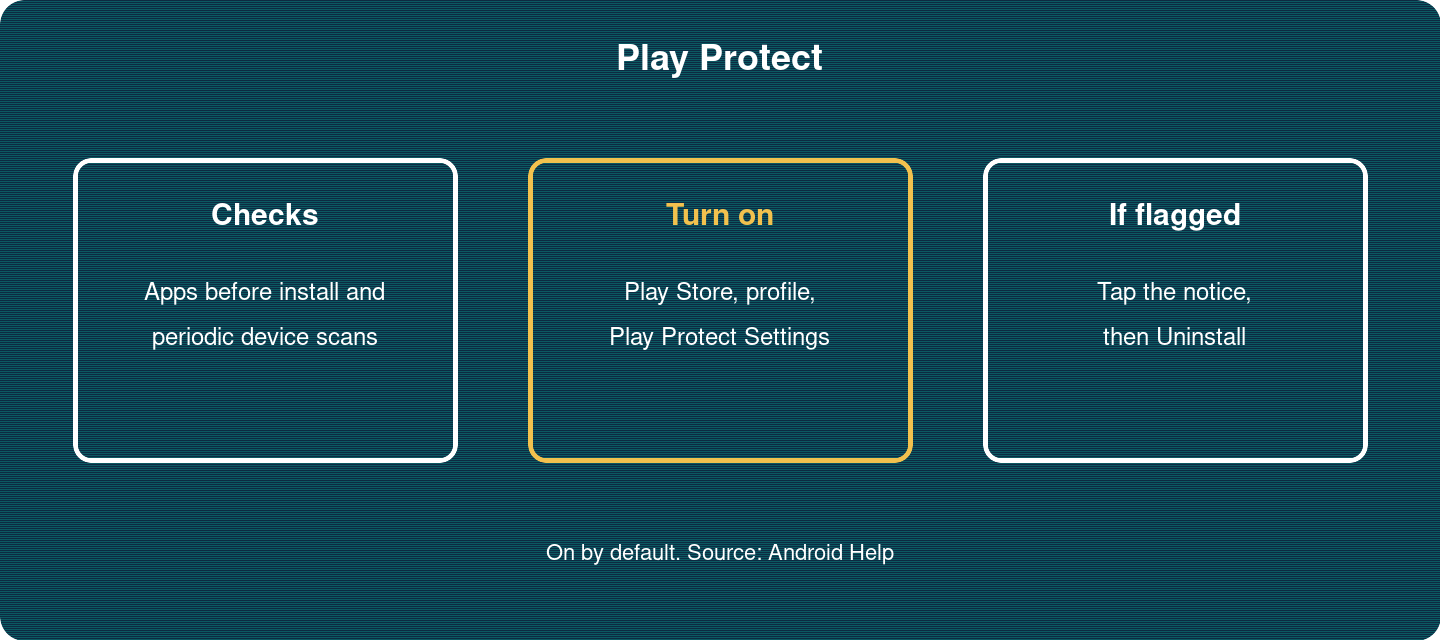
Google says it is on by default and recommends you always keep it on. To check whether the device is Play Protect certified, tap the profile icon, Settings, then About.
Play Protect checks apps at install and scans periodically. It might send a notification: tap it, then tap Uninstall. It might disable the app until you uninstall it, or remove it automatically.
If you install apps from outside Google Play, Play Protect may ask to send unknown apps to Google for a code-level scan. The Improve harmful app detection setting lets it do this automatically. Google says you get a result a short time later.
A friend sends you an app file. Before installing, think about whether you need it at all, since installing outside the Play Store is where most risk lies (my note). If Play Protect offers a scan, accept it and wait for the result. If it later notifies you about an app, uninstall it, then check your accounts: see recover your Google account. Play Protect is one layer. Also read why install software updates and free up storage on Android.