How to Set Screen Time Allowances for Your Child's iPhone or iPad (iOS 27)
Set a daily Time Allowance, adjust categories, and manage apps and websites in each category. Based on Apple Support, 4 November 2026.
Set a daily Time Allowance, adjust categories, and manage apps and websites in each category. Based on Apple Support, 4 November 2026.
Time Allowances let you set how long your child can use apps in categories such as entertainment, games and social media. This guide follows Apple Support (published 4 November 2026). It covers setting allowances and managing categories. Apple's page also explains Screen Time Schedules, which this guide only points to.
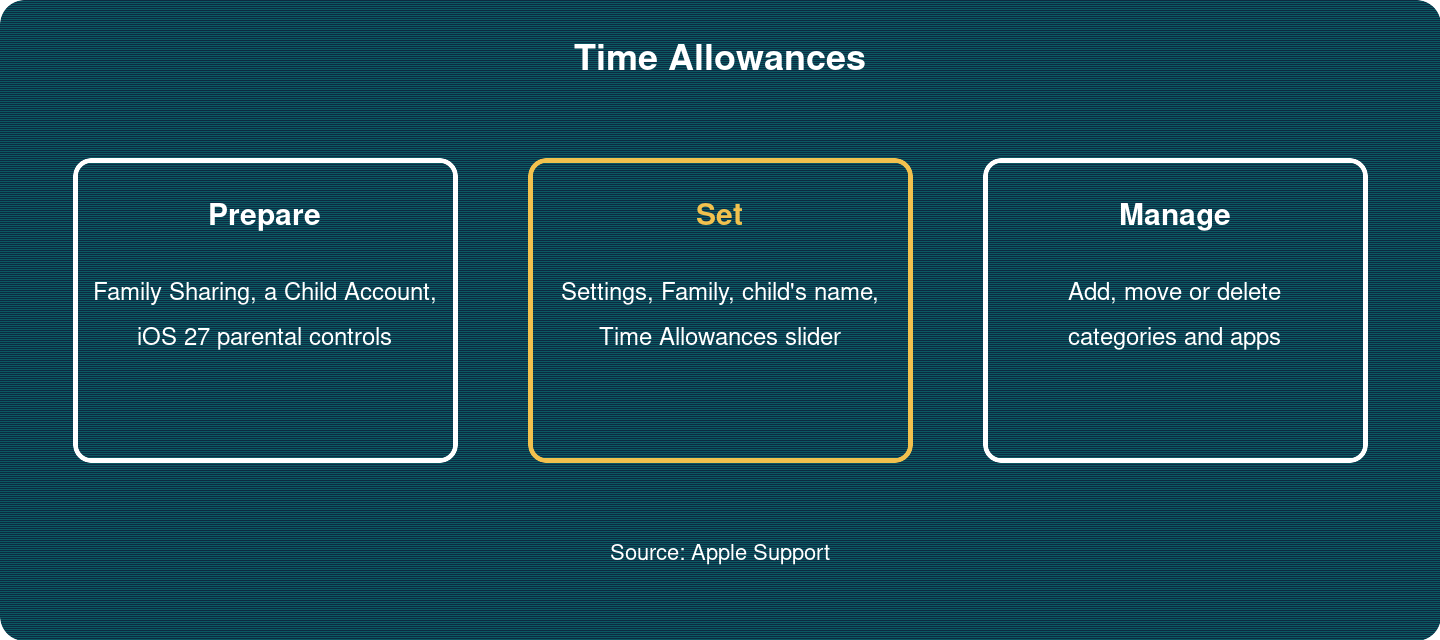
To set separate allowances for each schedule, turn on Match Screen Time Schedule. Leave it off to use the same allowances every day.
You can create your own categories, add apps to existing ones and move apps between them. If you add a website under Apps & Websites, you can move that website to another category.
Screen Time Schedules choose which apps your child can use at different times, such as before and after school, and are based on the categories you set here. Open Settings, tap Family, tap your child's name, then Screen Time Schedule and turn on Schedule. Apple's page has the full steps for time windows.
You want your child to spend less time on games. Set a daily allowance with the slider, then lower the Games category with its minus button. If you also want a Screen Time passcode so settings cannot be changed, see create a Screen Time passcode.