How to Secure Your Home Router: A Prioritised Checklist
Ten router settings in order of value, from changing the admin password to turning off WPS and UPnP. Based on CISA home network guidance.
Autobaselli · 3 min read
Your router connects every device in the house to the internet, and many people never change a setting on it. This checklist follows CISA's home network security guidance, ordered so that the quick, high-value steps come first. CISA's page was released in February 2021, so menu names on your router may differ. Check your router's manual or your internet provider for exact steps.
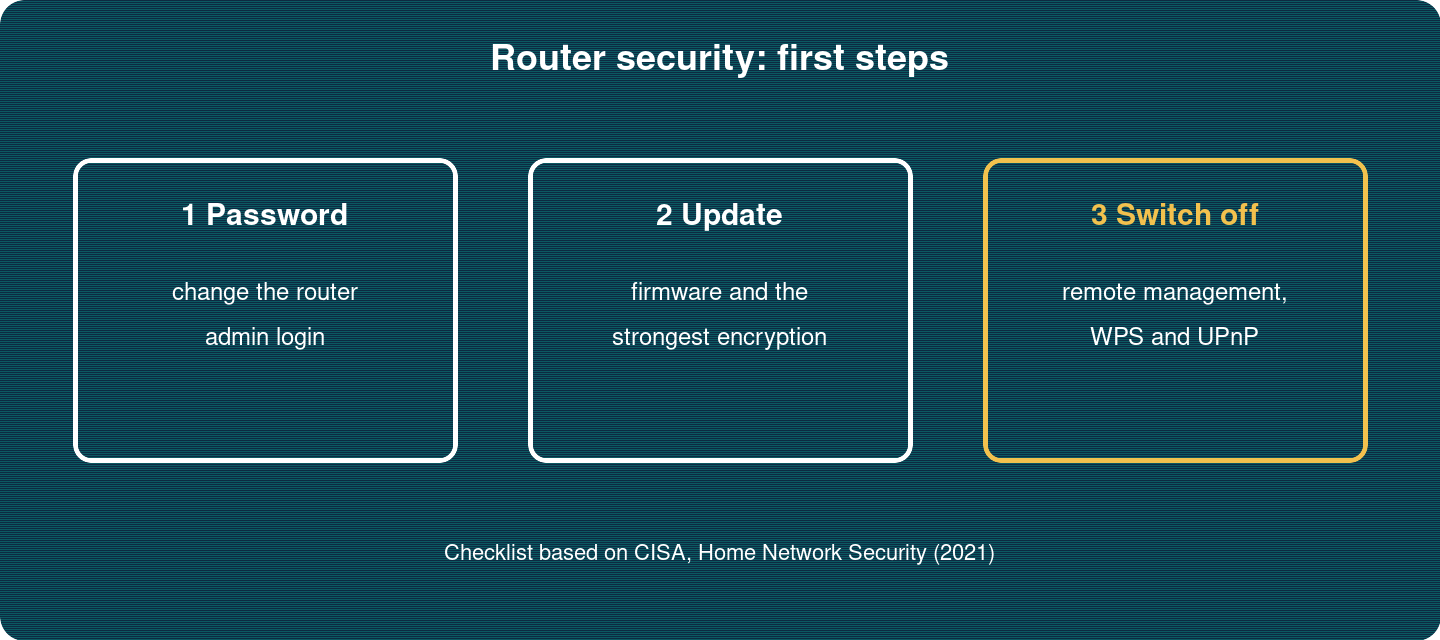
The first steps in the order that gives the most protection for the least effort.
Two myths CISA names
CISA says many home users believe their network is too small to be attacked and that their devices are "secure enough" out of the box. Neither is true. Most attacks are not personal, and any network connected to the internet is inherently more exposed.
The first five minutes
Change the router's admin password. CISA says default administrator credentials are not secure: they may be available online or printed on the device. Use a strong, unique one. See strong passwords and password managers.
Use the strongest Wi-Fi encryption your devices support. CISA recommends WPA3 Personal with AES as the most secure home configuration. Older devices may only work with WPA2, so test your devices after changing it.
Update the router's firmware. Check the maker's website for the latest version. CISA says updates improve performance, fix flaws and address security holes, and some routers can update automatically.
Turn off remote management. Many routers let you view and change settings over the internet. CISA says to turn this off so unauthorised people cannot reach your settings.
Change the default network name (SSID). A default name often reveals the manufacturer or device model, which helps an attacker look up known weaknesses. CISA says to make it unique and not tied to your identity or address.
Next layer
Disable WPS. CISA says a design flaw in WPS PIN authentication shortens the time needed to guess the eight-digit PIN, and many routers do not lock out repeated attempts.
Disable UPnP unless you need it. CISA says malware inside your network can use UPnP to get around the router's firewall. Some games and devices may expect it, so turn it off and see if anything breaks.
Check the firewall is on. CISA notes that most routers include a firewall that may be turned off or left unconfigured by default.
Check for unknown devices. Use the router maker's site or app to see what is connected, and look for anything you do not recognise.
Consider coverage. CISA says Wi-Fi often reaches outside the home, which allows eavesdropping from outside. Moving the router or lowering power can reduce that, though a determined attacker may still pick up the signal. Note this can trade off with coverage inside the house, see slow Wi-Fi in one room.
Turn Wi-Fi off when away, or use a router schedule, if that is practical.
Beyond the router
CISA's list also includes keeping all software updated, removing unneeded software, running antivirus with automatic definition updates, using software firewalls on computers and making regular backups. It adds that antivirus relies on known patterns and will not fully protect against brand-new threats. See why you should install software updates and how to back up your data.
A worked order of operations
Log in to the router using the address in its manual. Change the admin password first and save it in your password manager. Then check the firmware, then encryption, then switch off remote management, WPS and UPnP. After each change, reconnect one device and confirm it still works. If an older device fails after the encryption change, you have found a device that may need replacing or a separate guest network.
Sources
CISA: Home Network Security (released 1 February 2021; misconceptions, default passwords, WPA3, SSID, WPS, UPnP, firmware, remote management, signal strength, backups)